Point of sale
A till built around the way you work.
Table service or counter sales, in the same interface.
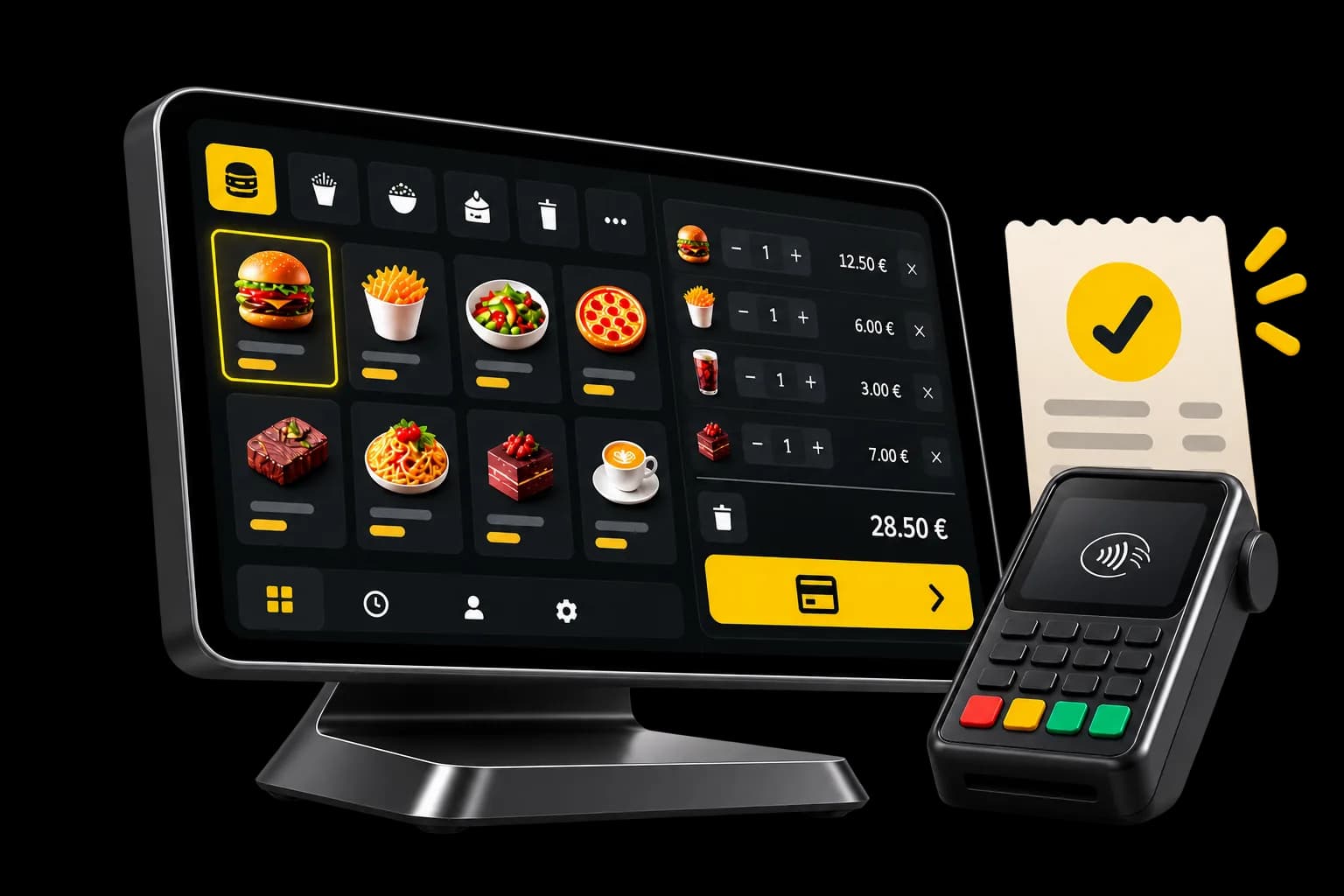
Take orders, send them to preparation, follow the service and take payment without leaving the screen.
- Included in every plan
- No commitment
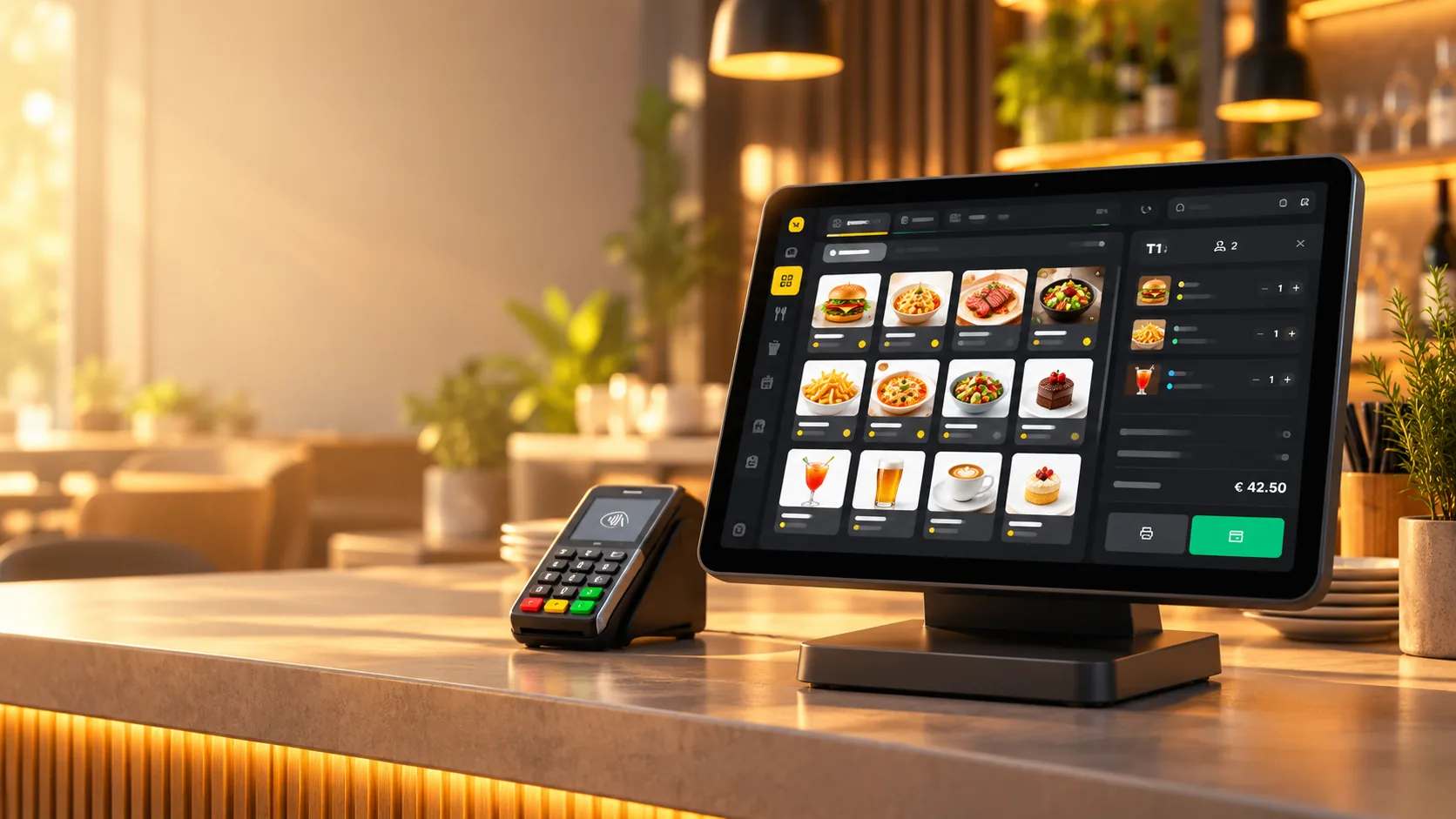
Table service
Tables, courses and open bills.
Counter sales
An order, then payment, in a few actions.
Kitchen in the loop
Orders go straight into preparation.
Flexible payment
The balance, a split, or only some items.
Two modes. One till.
Table service or counter sales, whichever you need.
Move between table service and counter sales on the same till. Choose the mode that fits the venue, or the service in front of you.
Table service
Floor plan, open bills, sending to the kitchen, and payment when the guest is ready.Counter sales
A short order, then payment. For counter sales, with no tables or courses to manage.
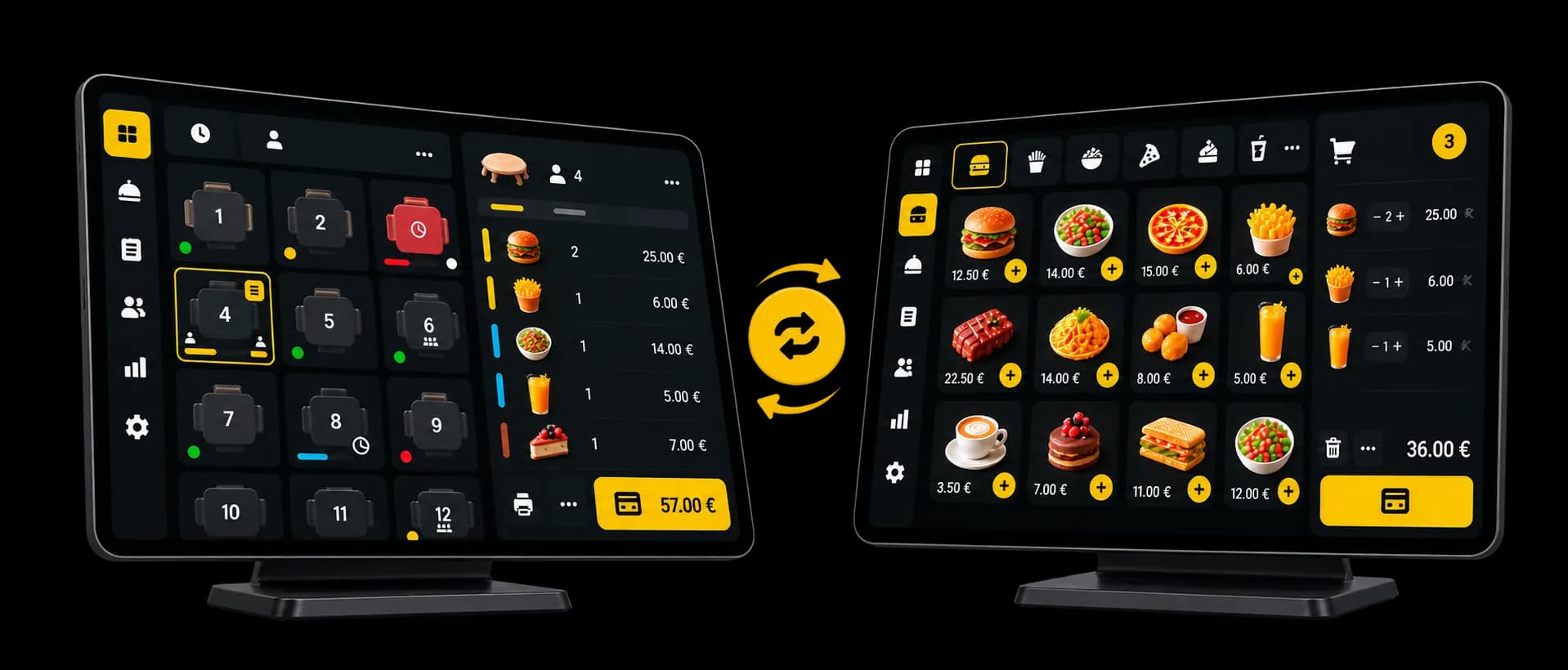
Table service
Run table service from one screen.
Open a table, add orders through the meal and take payment when the guest is ready. The open bill and the kitchen progress stay visible.
Floor plan
Tables and open bills, in one place.Several courses
Starter, main, dessert: each course leaves when you send it.Preparation follow-up
You can see what is in the kitchen and what can be served.Flexible payment
The bill is settled in one go, or in several.
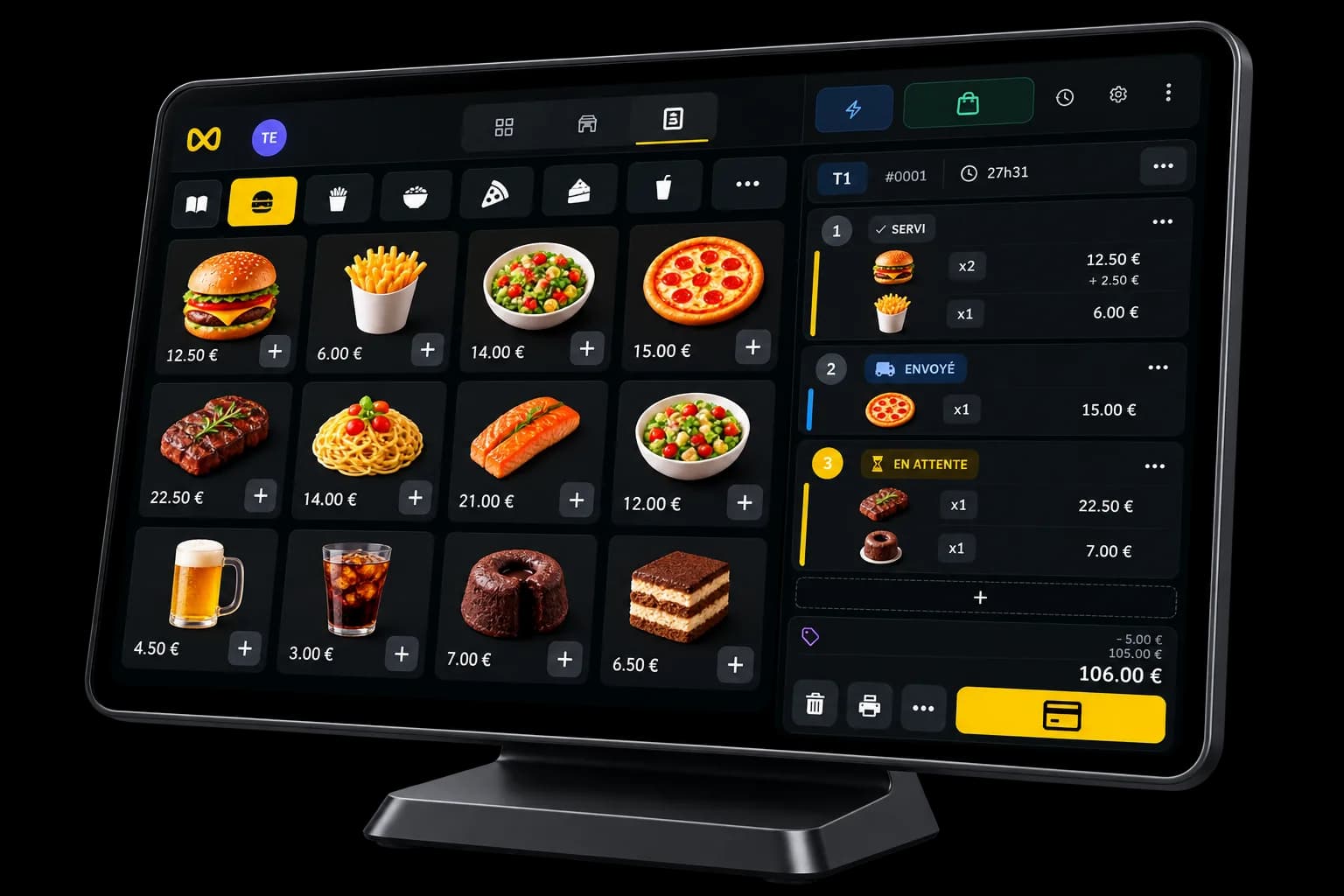
Order taking
Take orders simply and quickly.
Categories, products, set menus and options stay available from the order in progress, without extra screens.
Categories
Group products into categories so they are easy to find.Set menus
Build a set menu while the order is being taken.Options and extras
The product’s choices open when it is added.How products look
Choose which details are useful to show on each product.
Options
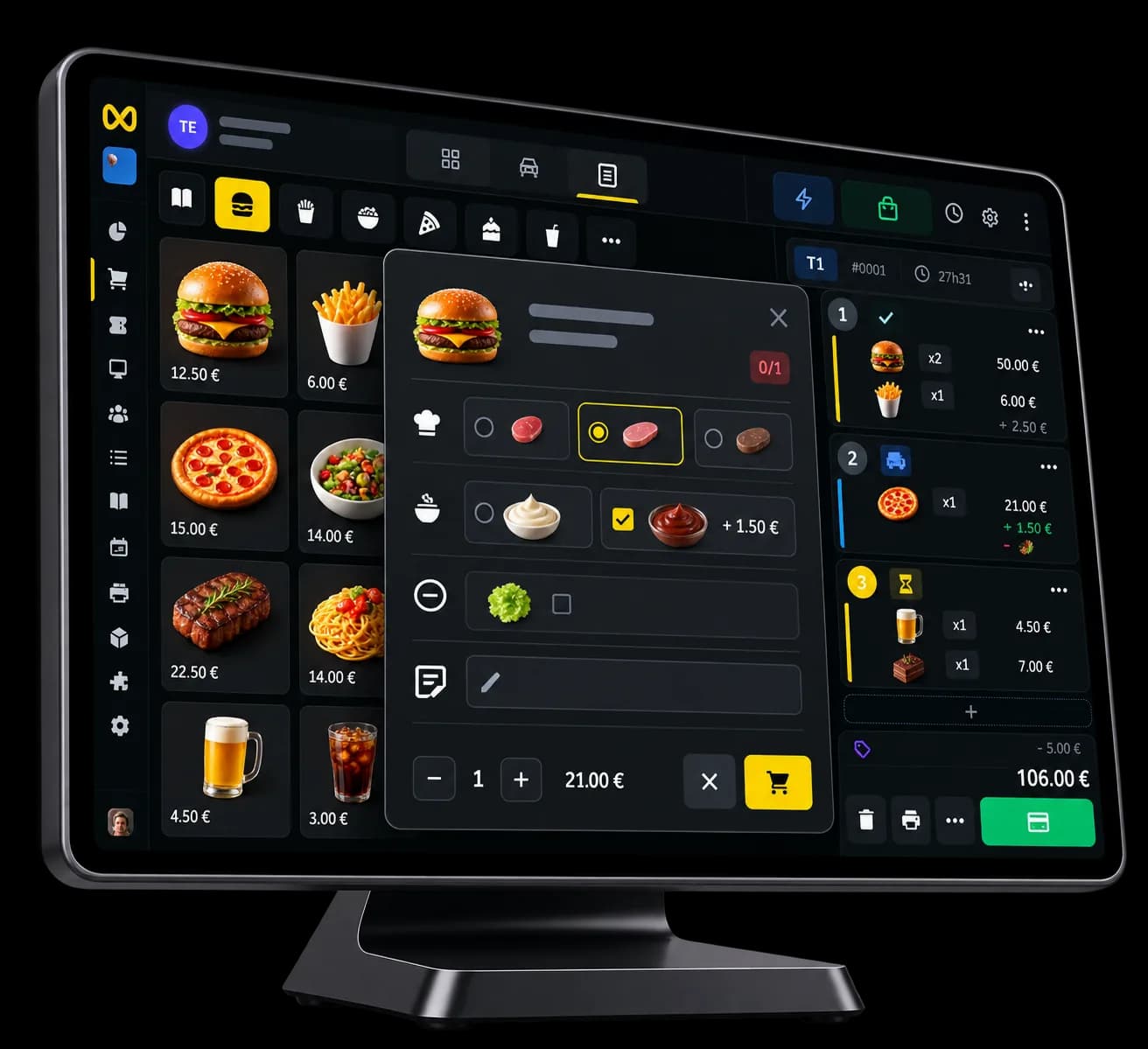
Handle options and extras with ease.
Pick the options, add an extra, remove an ingredient or leave a note while the order is being taken.
Required options
A required option is chosen before the product is added.Extras and removals
Add an extra or remove an ingredient in one step.A note
Add an instruction directly on the product.Quantity
Change the quantity without adding the same product several times.
Kitchen
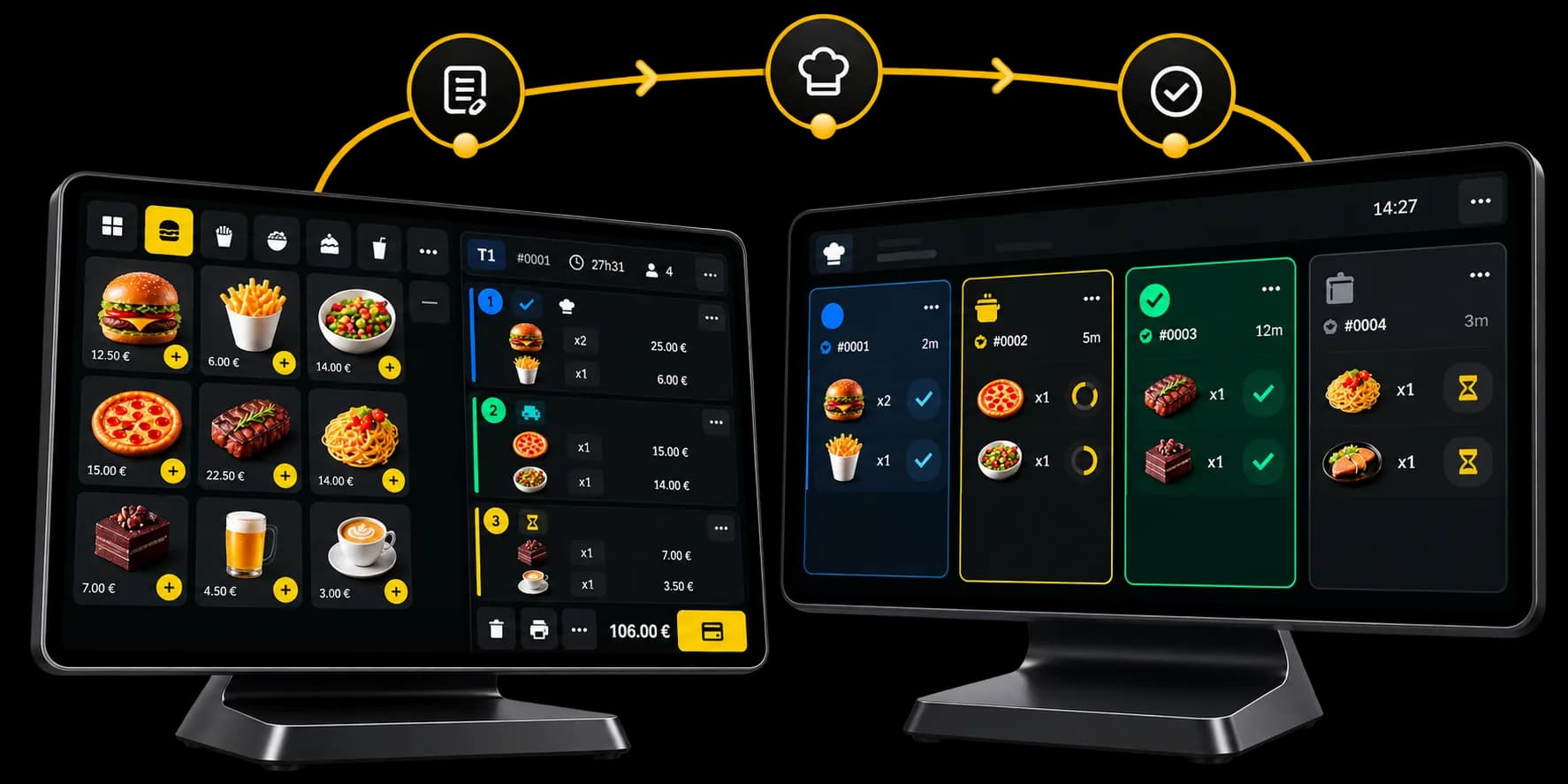
Send orders to the kitchen and follow preparation.
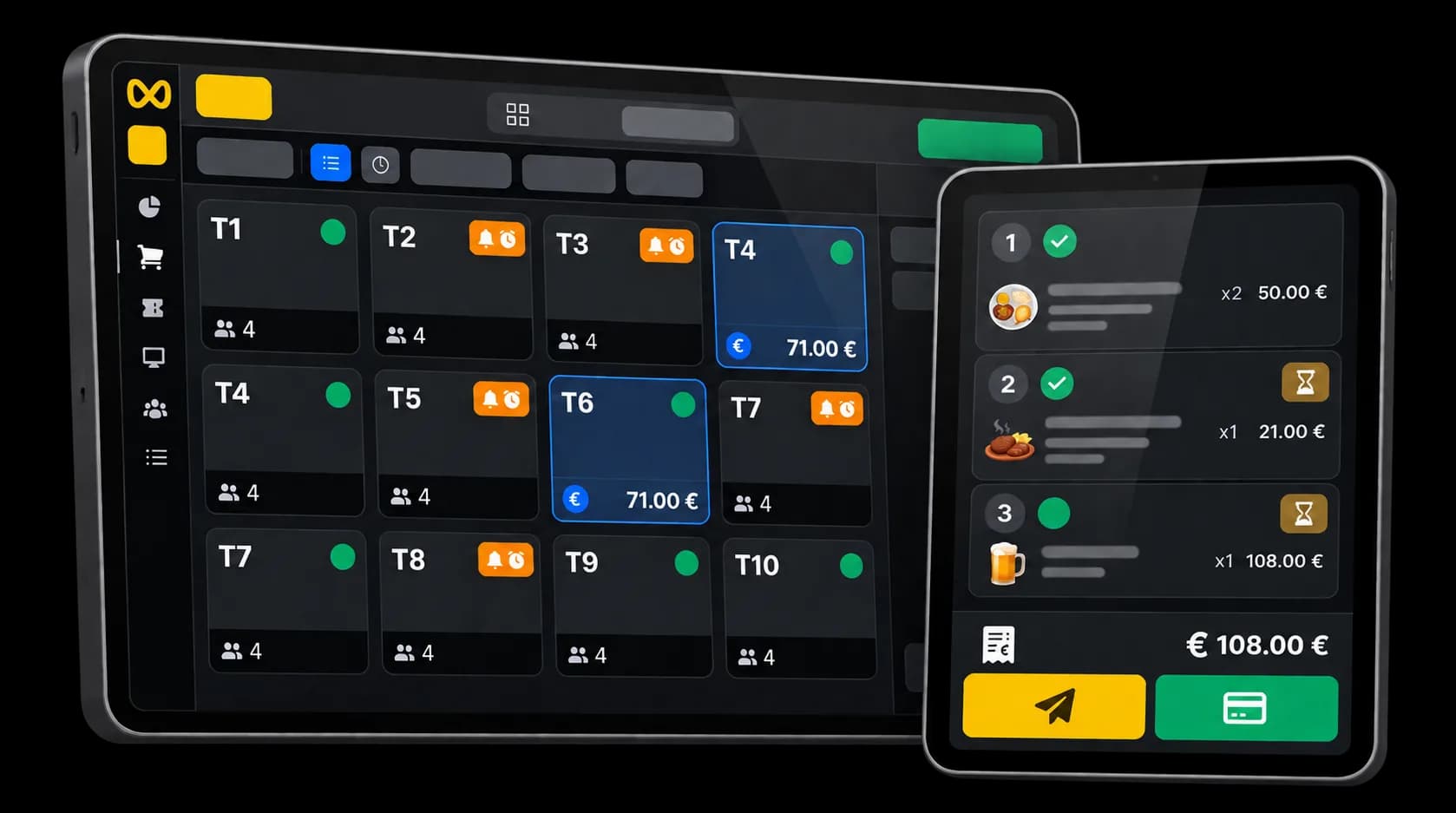
From a table, you send a course when it should go. Its progress stays visible on the same order.
Send by course
You decide which course goes, and when.Preparation status
Sent, in progress, ready: the status stays on the same order.Ready to serve
The team sees straight away what is ready to serve.The same order
The order, its preparation and its payment stay in the same interface.
Payment
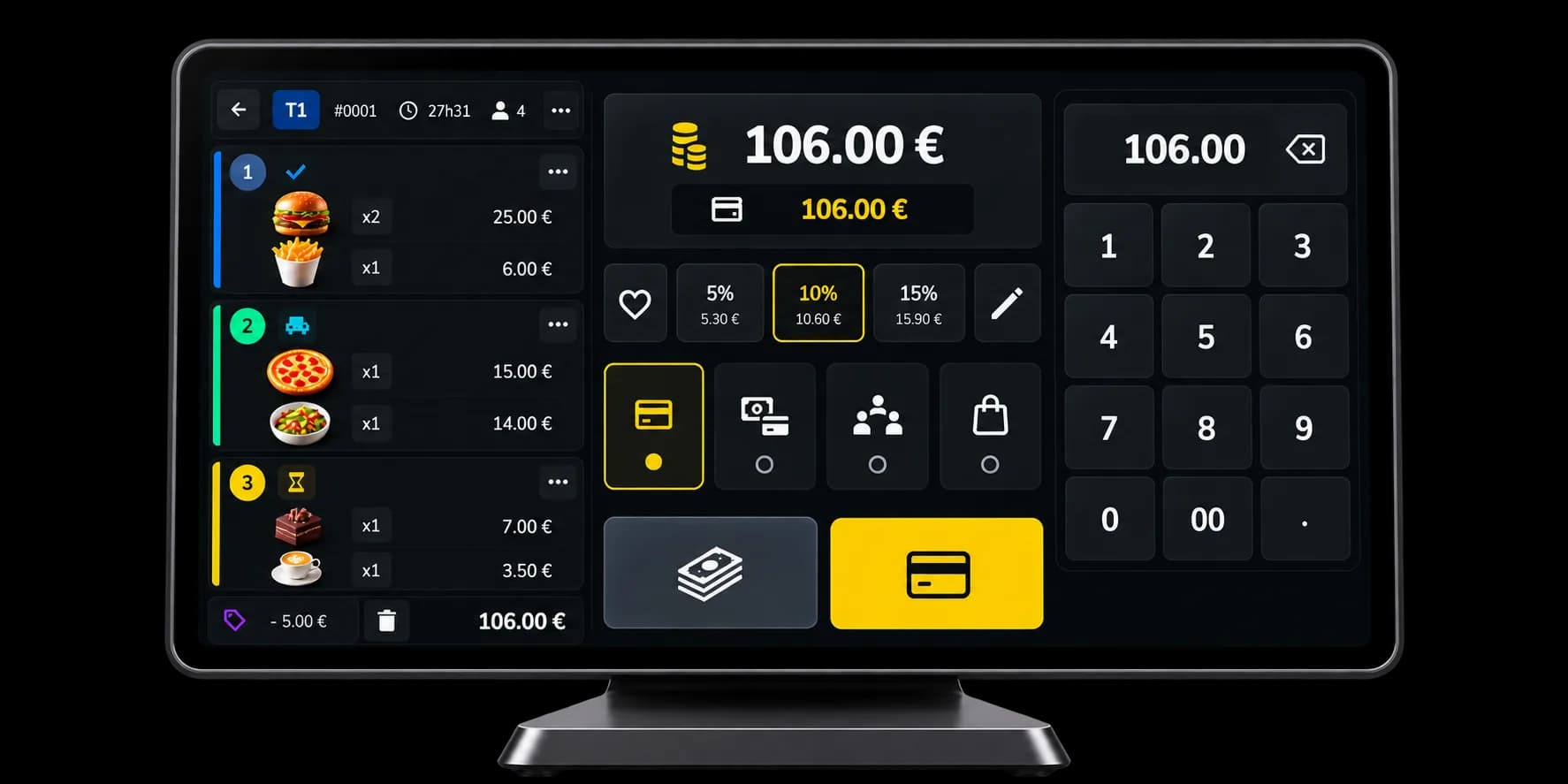
Take payment in more than one way.
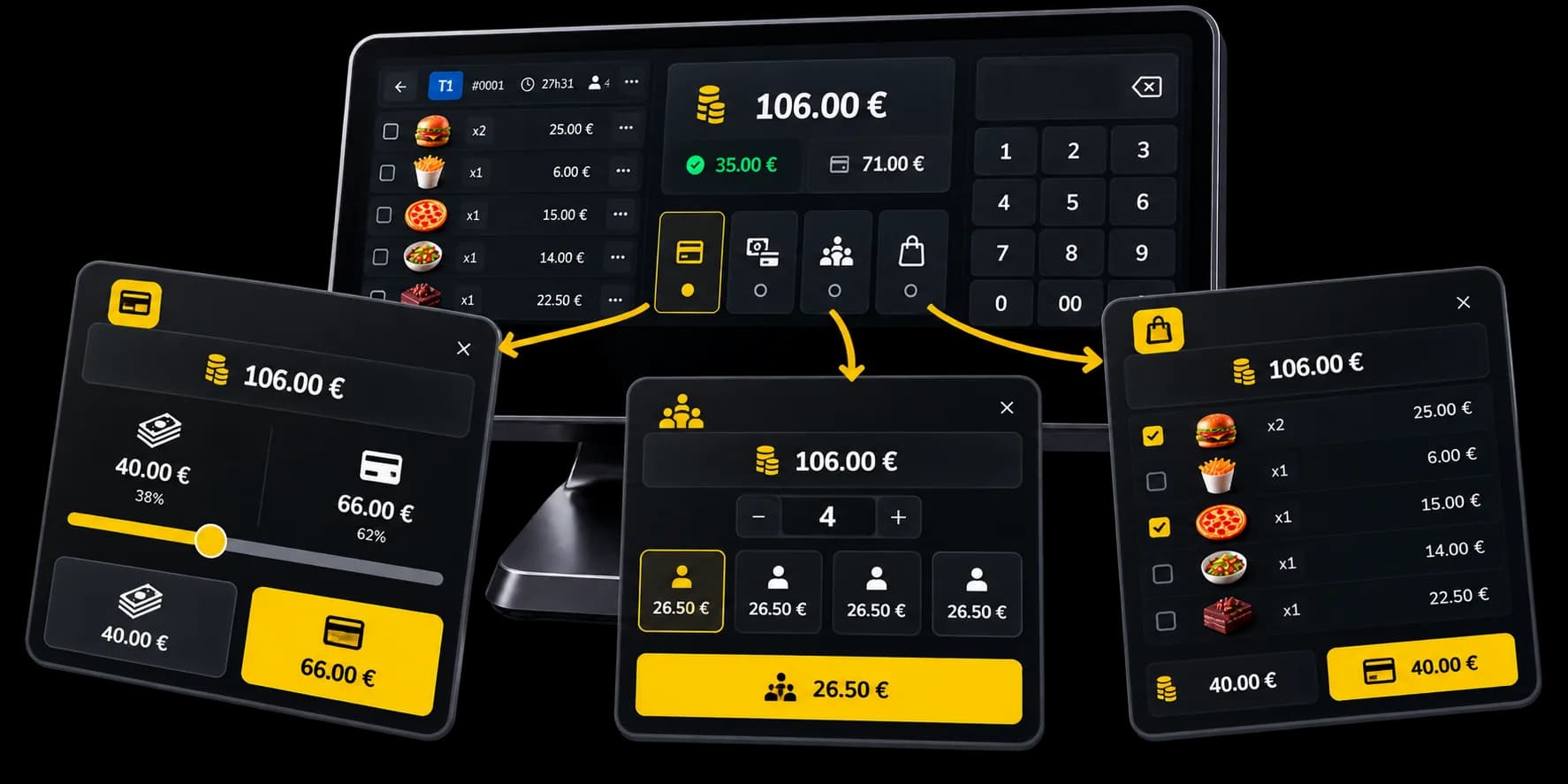
Payment is on the same screen as the order: the remaining balance, a split, or only some of the items.
Remaining balance
What is already paid, and what is left.Cash and card
Part in cash, the rest by card, on the same bill.Across several people
The bill is split between whoever still owes.Selected items
Each person pays the lines that are theirs.
Split payment
Split a bill without working it out by hand.
The split happens on the till, with no second calculation beside it. Part in cash and the rest by card, several people, or only the chosen items.
Cash and card
Two methods, one amount still due.Several people
Divide the remaining amount between several people.Selected items
The chosen items, without building another bill beside it.
Counter sales
A simpler till for counter sales.
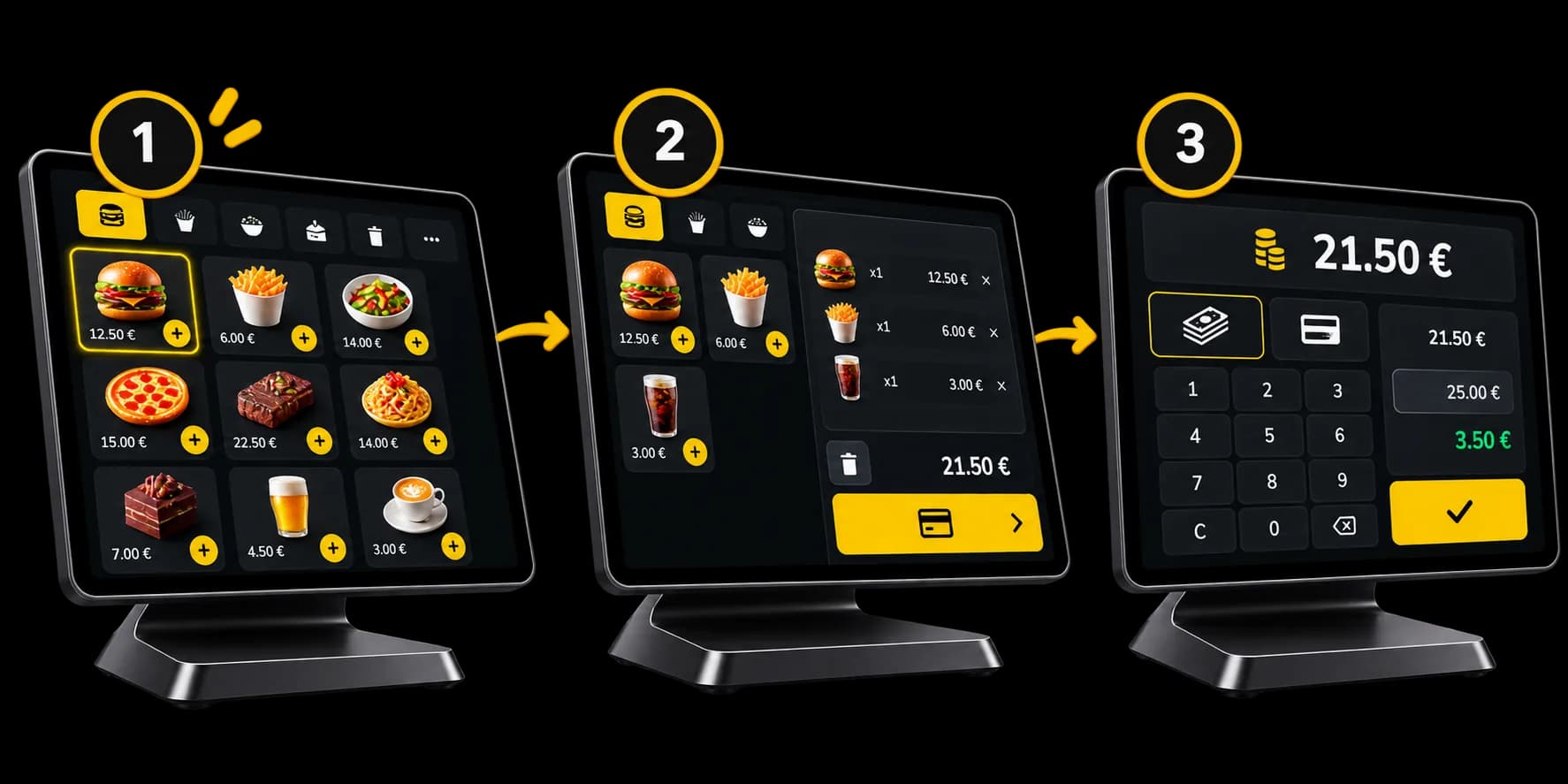
The steps tied to tables and courses drop away. What stays is the counter path: product, basket, payment, next order.
A simpler screen
Fewer steps between the product and the payment.Payment straight away
The order is settled before the next one.Counter and volume
Suited to a counter, a bar, and services where orders follow one another.The same menu
Products, options and payment methods stay the venue’s own.
Setup
An interface that fits how your team works.
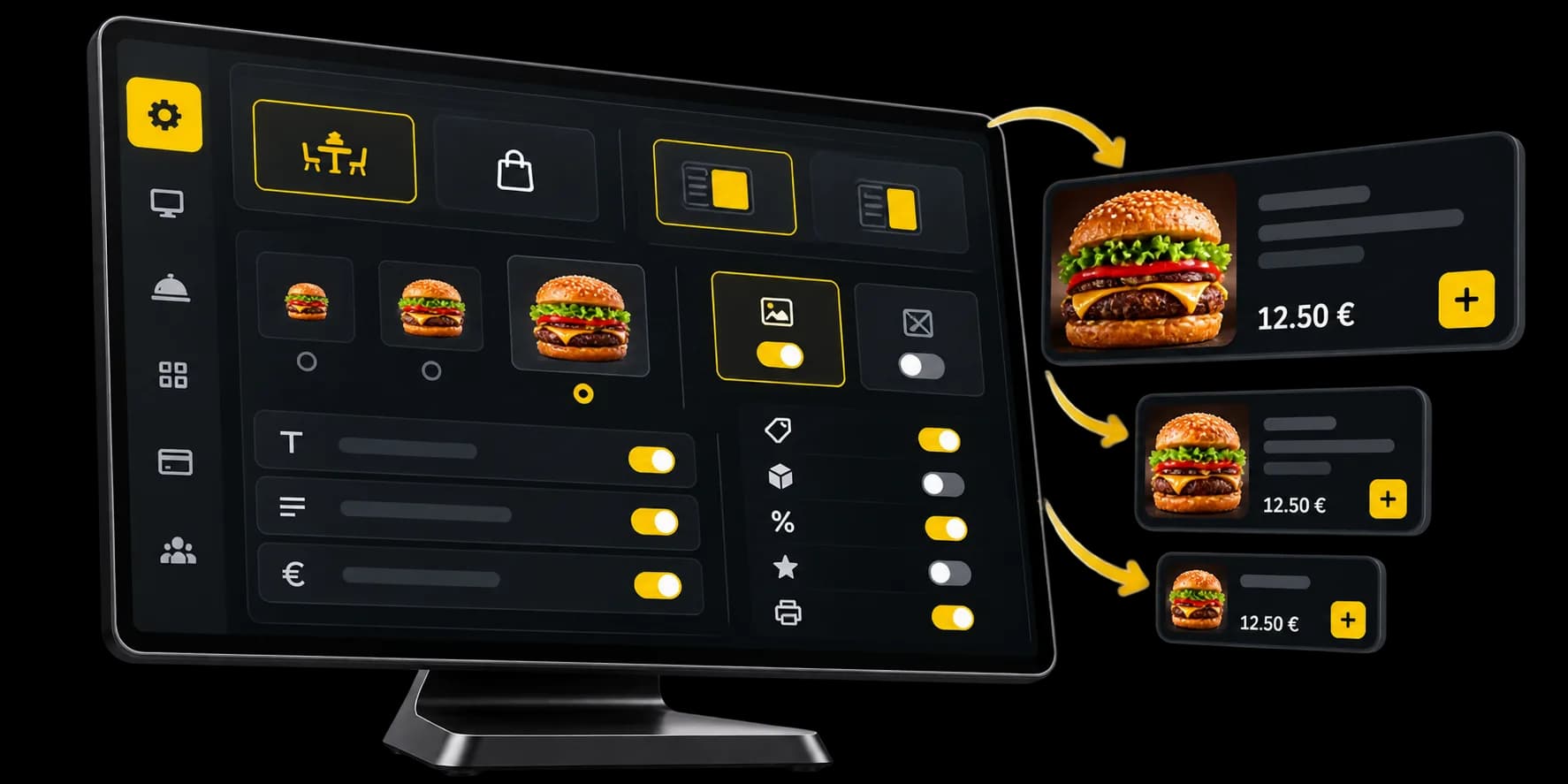
The working mode and the display can follow how the venue is organised: basket position, photo, name, price.
Working mode
Table service or counter sales, for the service in front of you.Basket position
The basket sits on the left or the right of the screen.Product display
Choose what each product shows: photo, name, description and price.Display settings
Adjust the other parts of the interface to what the team needs.
Continuity
Keep taking orders when the connection becomes unstable.
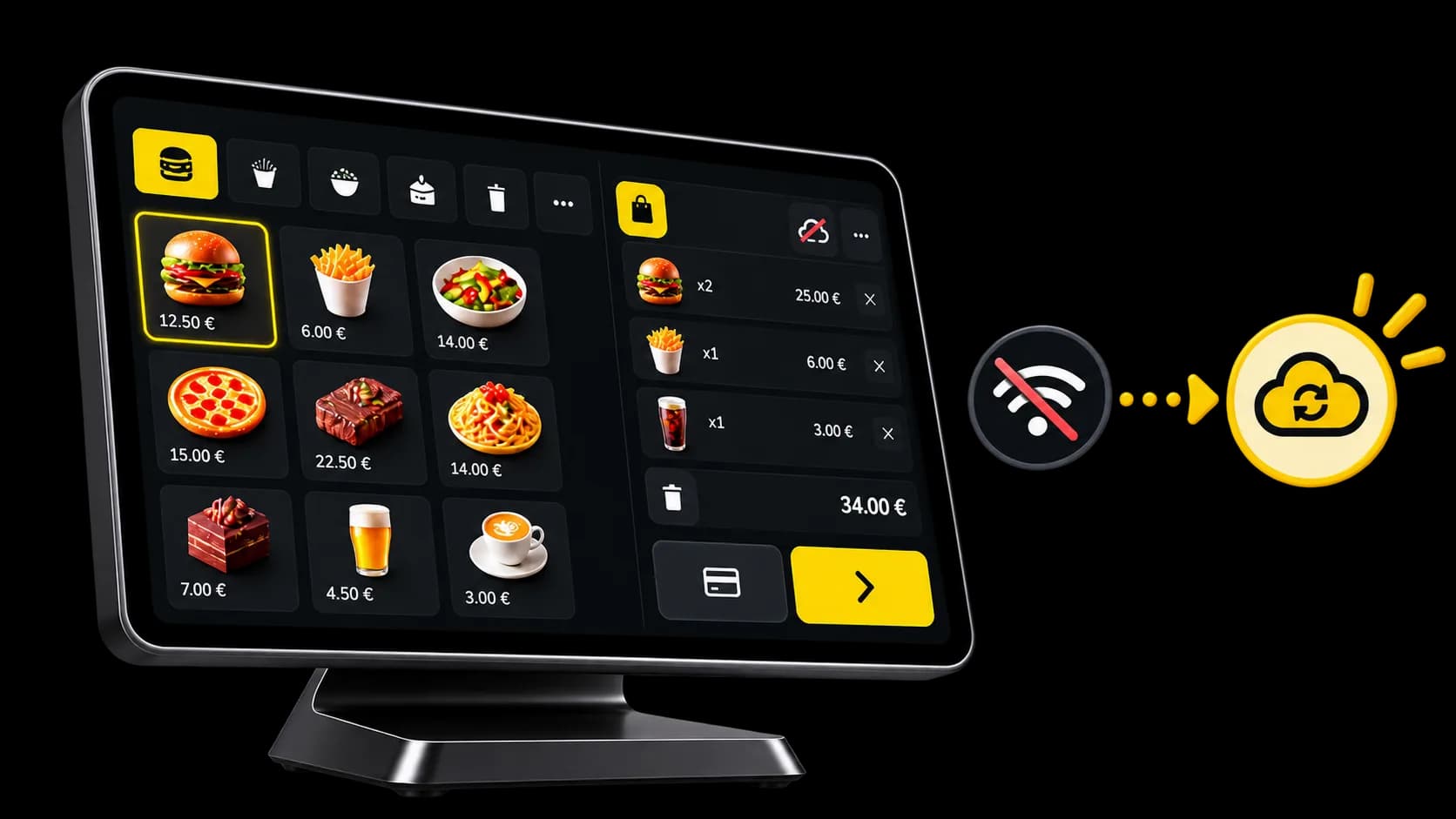
Order taking continues on the device. Orders already entered sync once the connection is back.
Orders stay on the device
The team keeps taking orders.Sync when it returns
What was entered is sent to Waiterr as soon as the connection is back.The state is visible
You can see whether the till is online.
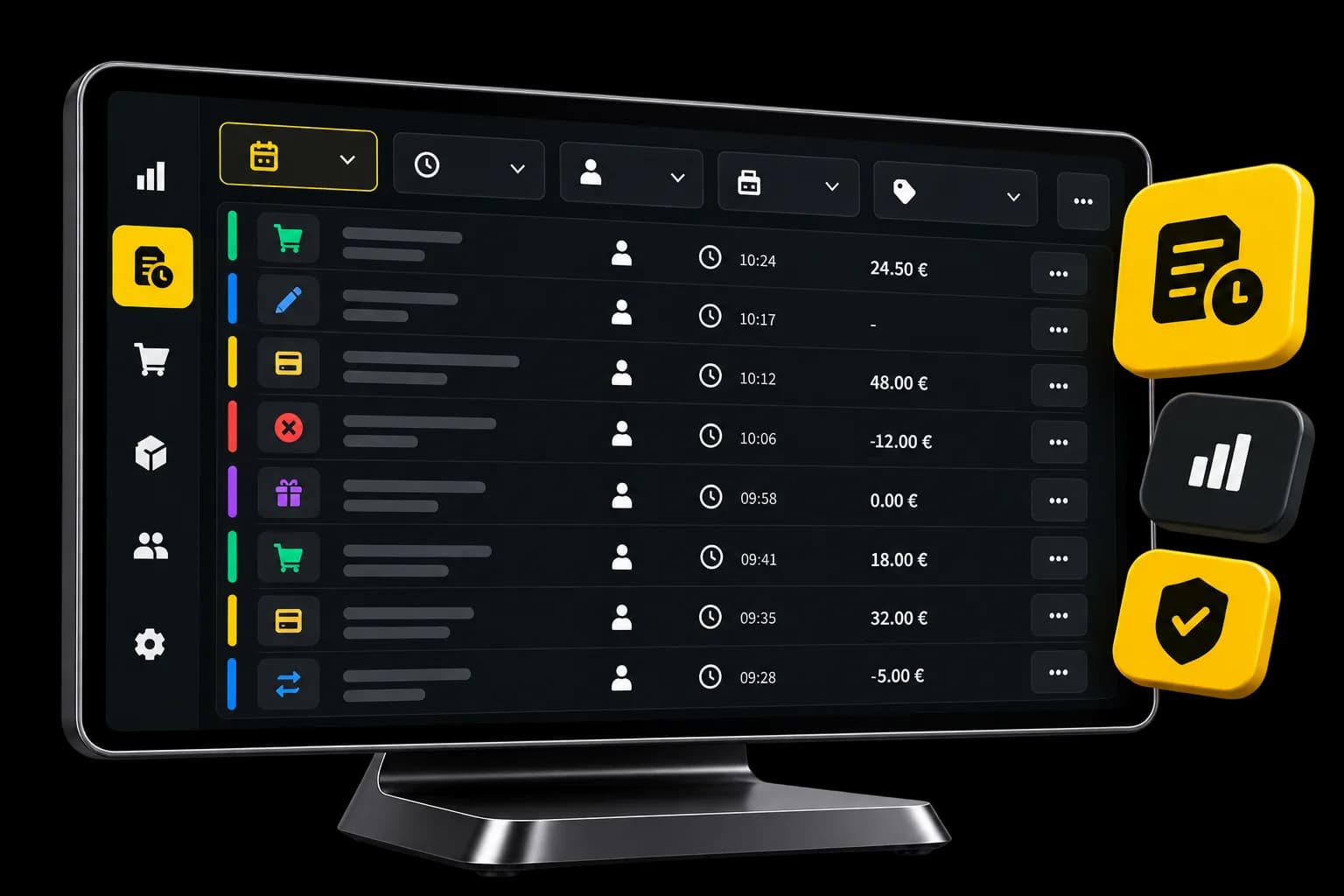
Audit and history
Keep a clear history of what happens on the till.
Important actions are recorded. The venue can look back at the service: orders, changes, payments, and who did them.
Orders and changes
What was added, sent or changed.Payments
Find the payments linked to each order.Who did it
The name and the role, with the time.History
A list of actions, not a sales chart.
Ecosystem
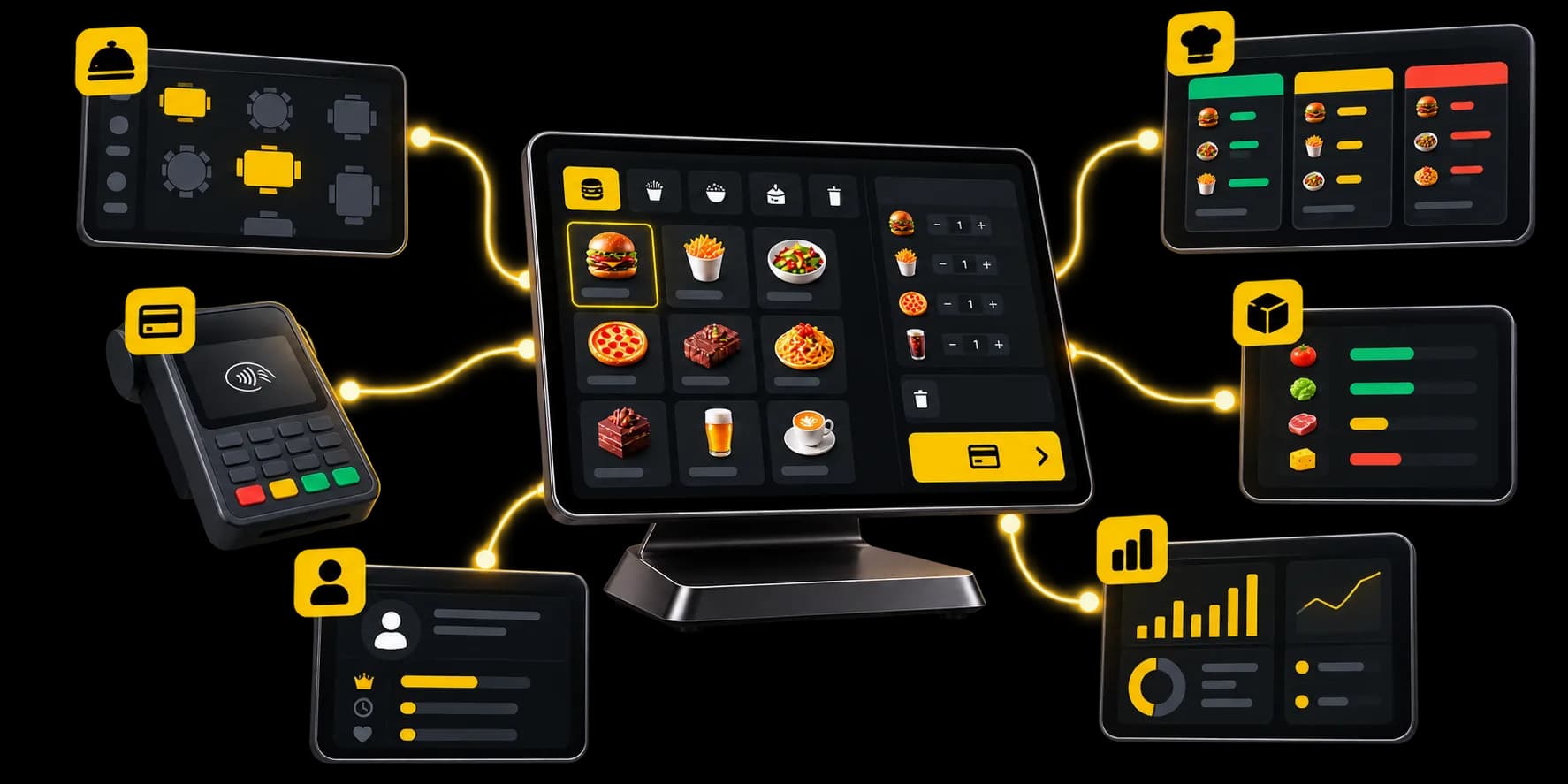
Your till, connected to the rest of Waiterr.
Orders, preparation, payments, customers, stock and activity sit in the same place.
- OrdersFloor, counter and online orders, on the same account.
- PreparationWhat you send from the till reaches the kitchen.
- PaymentsService payment, and the online methods you have switched on.
- CustomersAn order can be linked to a customer.
- StockStock tracking lives on the same account.
- FiguresThe day’s service shows up on the dashboard.
Who it is for
Built for different kinds of venues.
Restaurant, café, bar or food truck: use the mode and the tools that fit how you are organised.
Questions about the till
What venues ask before they run a service on Waiterr.
Can Waiterr be used without a floor plan?
Yes. In counter sales the till does not show a floor plan: every order is a counter sale.
Can I switch from counter sales to table service?
Yes. The mode is a setting on the till. Switching reloads the screen. It does not happen in the middle of a bill that is already open.
Which payment methods are available?
The ones you turn on for that order type, including cash and card. Online payment (card, Bancontact and the other methods enabled on your account) is for orders placed on your page.
Can part of a bill be paid?
Yes. The remaining balance, part in cash and the rest by card, a split between several people, or only the selected items. The team does not have to calculate a second bill by hand.
Are actions on the till recorded?
The important ones are: orders, changes and payments, with the person and the time. A manager can open that history. It is not a sales chart.
What happens if the connection becomes unstable?
Order taking continues on the device. Orders already entered sync when the connection returns. That does not guarantee a card payment or a printout if the terminal or the printer can no longer be reached.
Can the till display be customised?
Yes. The working mode, where the basket sits, and what products show: photo, name, description, price. The menu itself is managed separately, in the venue’s menu.
How does the till talk to the kitchen?
From a table, you send a course to preparation when you decide to. Progress stays visible on the same order. A production screen shows those sends when the venue uses one. Counter sales have no send-by-course: the order follows the venue’s confirmation setting.
Ready for a till that follows how your venue works?
Table service or counter sales, in the same interface.
- Free plan available
- No commitment
- Ready in minutes