Production screens · KDS
Every order reaches the right station.
Kitchen, bar, or another preparation station.
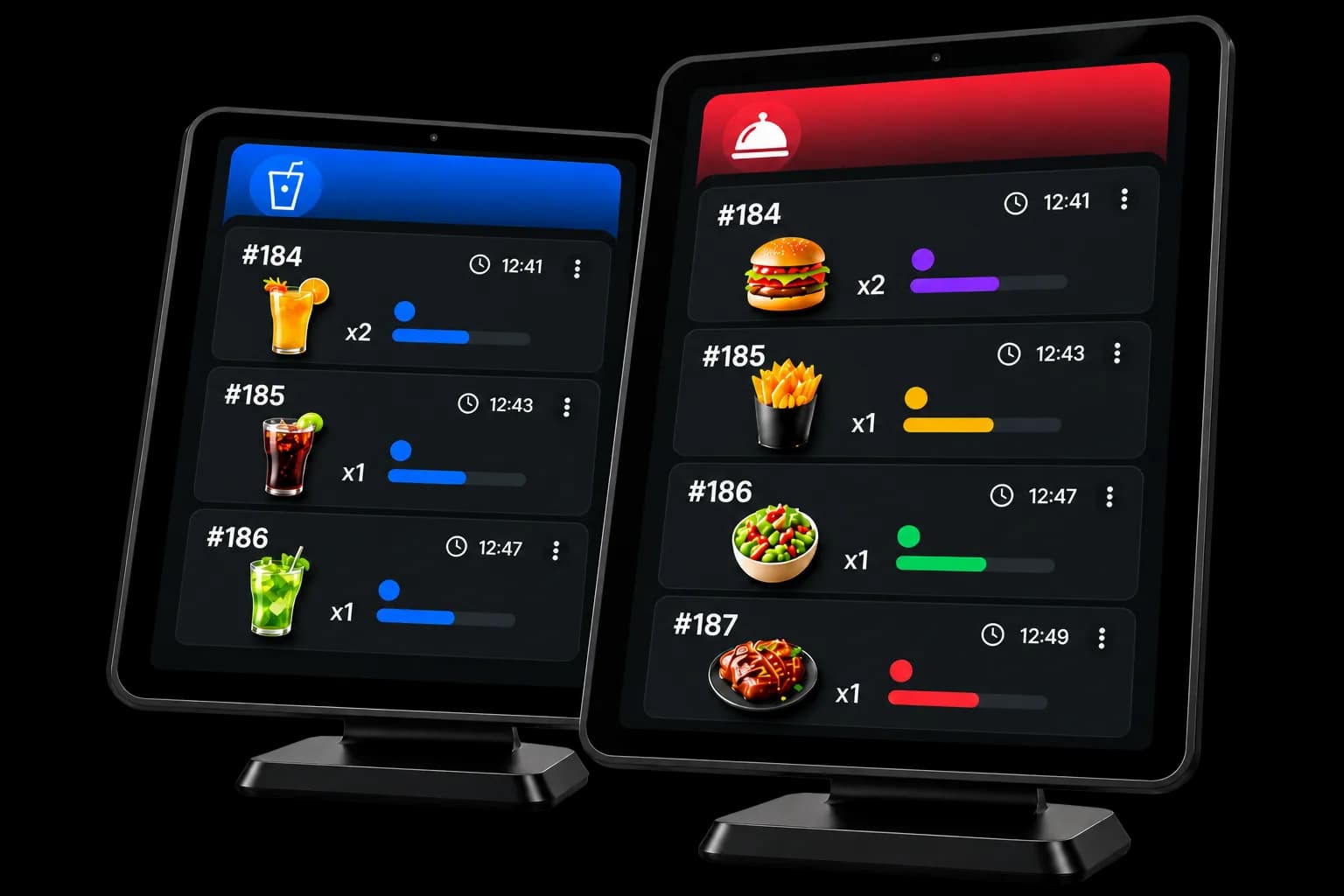
Each screen receives the products assigned to it, and the team follows preparation through to service.
- 1 screen included on Free
Several stations
Organise preparation across more than one screen.
Assigned by product
Each product is sent to the station it belongs to.
Preparation tracking
Move each item forward until it is served.
Tied to the till
Preparation status stays on the original order.
Order routing
One order stays one order, even when several stations prepare it.
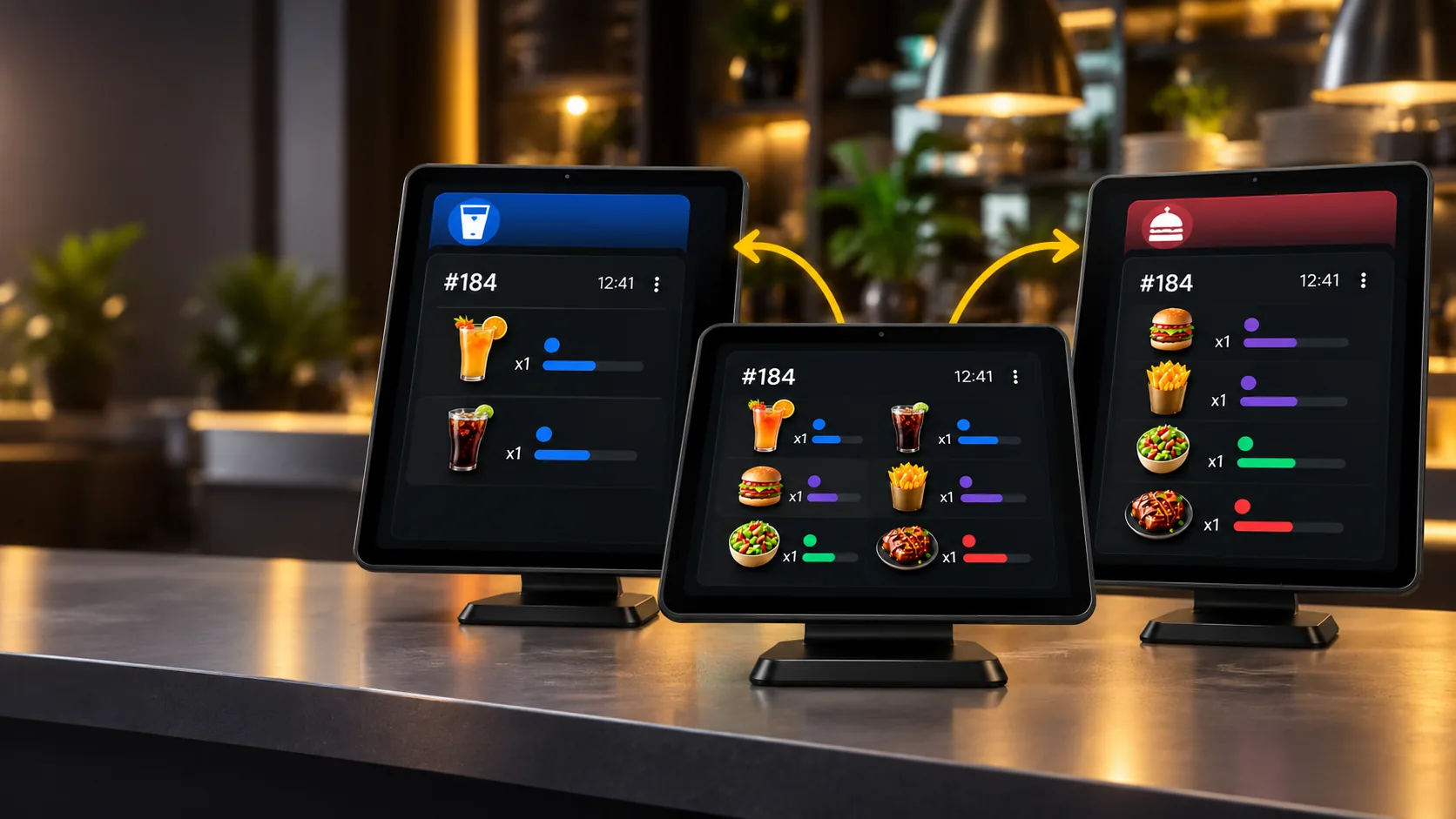
Drinks can go to the bar while dishes arrive in the kitchen. Each team only sees the products assigned to it, without splitting the bill into several orders.
One order
The order number stays the same on every station.Each station sees its share
The screen only receives the products assigned to it.Separate progress
Items from the same order can move forward separately.
Setup
Create the screens your team needs.
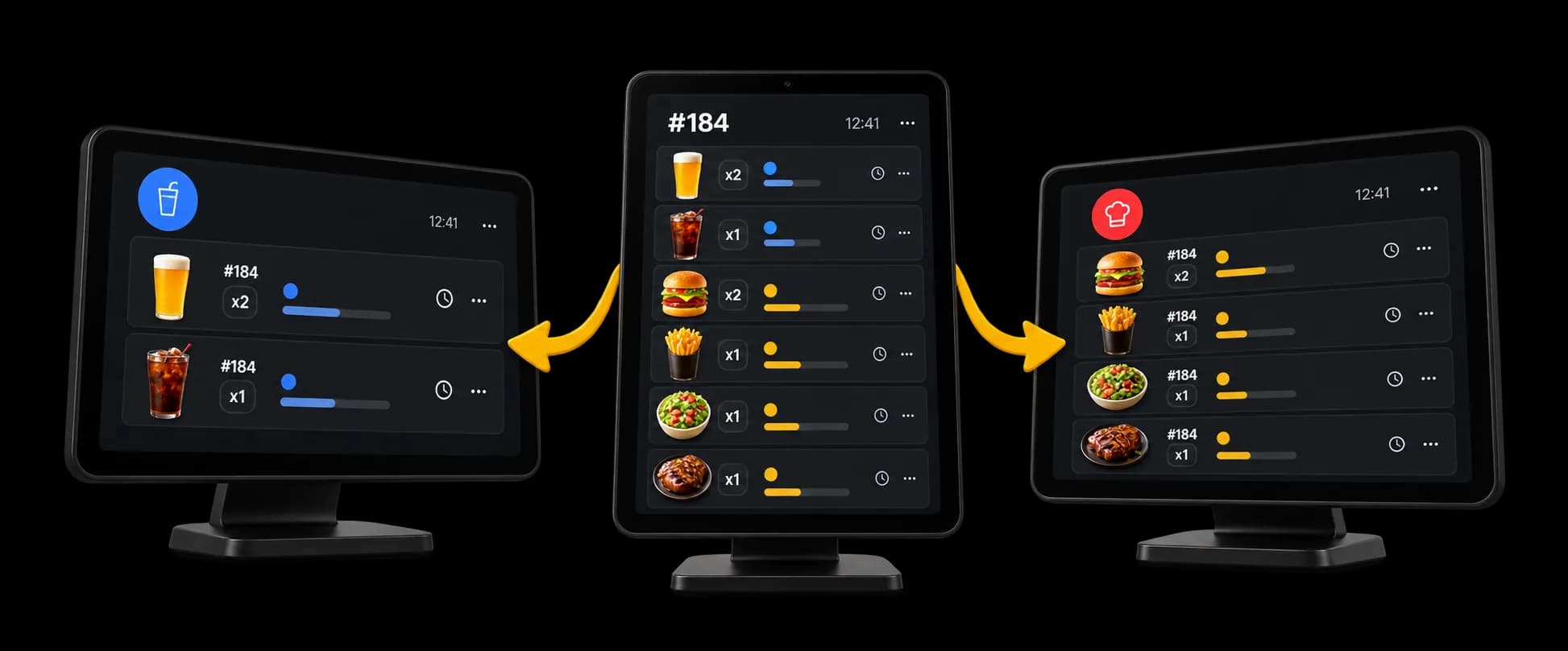
One point of sale can use several production screens. One screen can be the bar, another the kitchen.
Several stations
1 screen included on Free. Multiple on paid plans.Name each station
Use a name, a description and a colour so the team can recognise it.Assigned products
Each screen receives the products assigned to it.Independent setup
Each screen has its own settings and can be switched on or off.
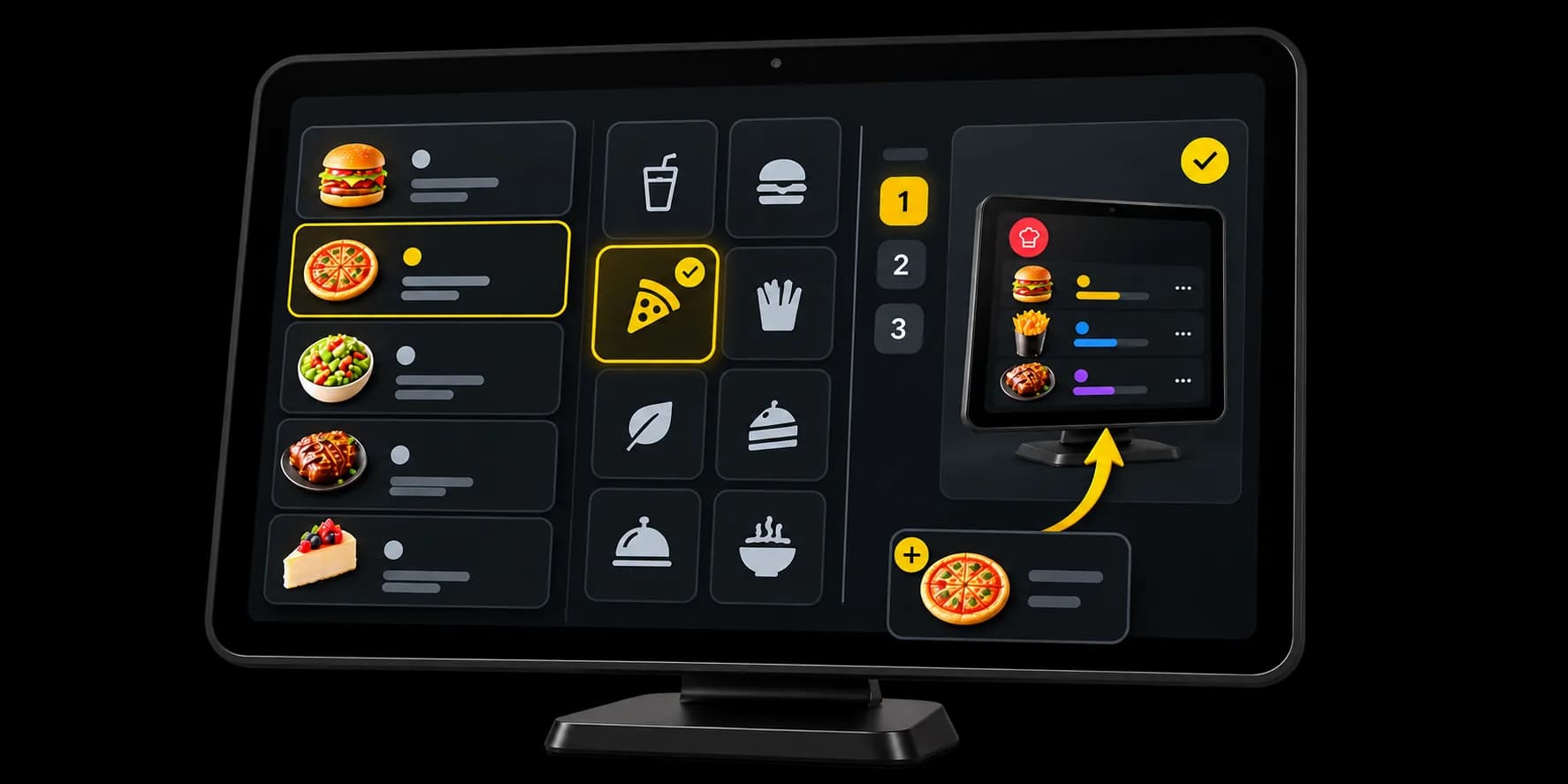
Product assignment
Send new products to the right station.
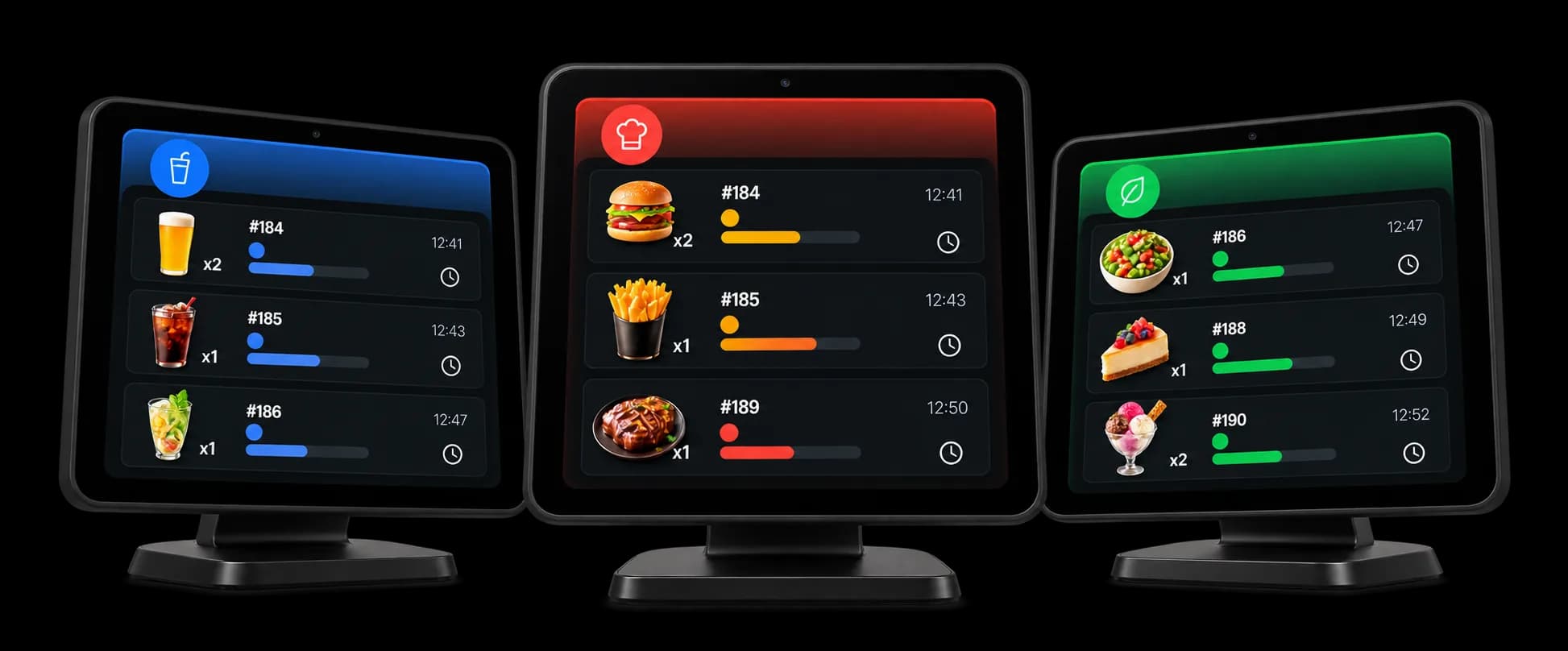
Link a screen to selected menus or categories. A product added afterwards can be assigned to that station. Changing the rule does not reassign products already in place.
By menu
New products on a selected menu can be assigned to the station.By category
A category can be the rule for products added afterwards.Direct assignment
A product can also be assigned straight to a screen.Priorities
When several screens match, priority decides which one receives the product.
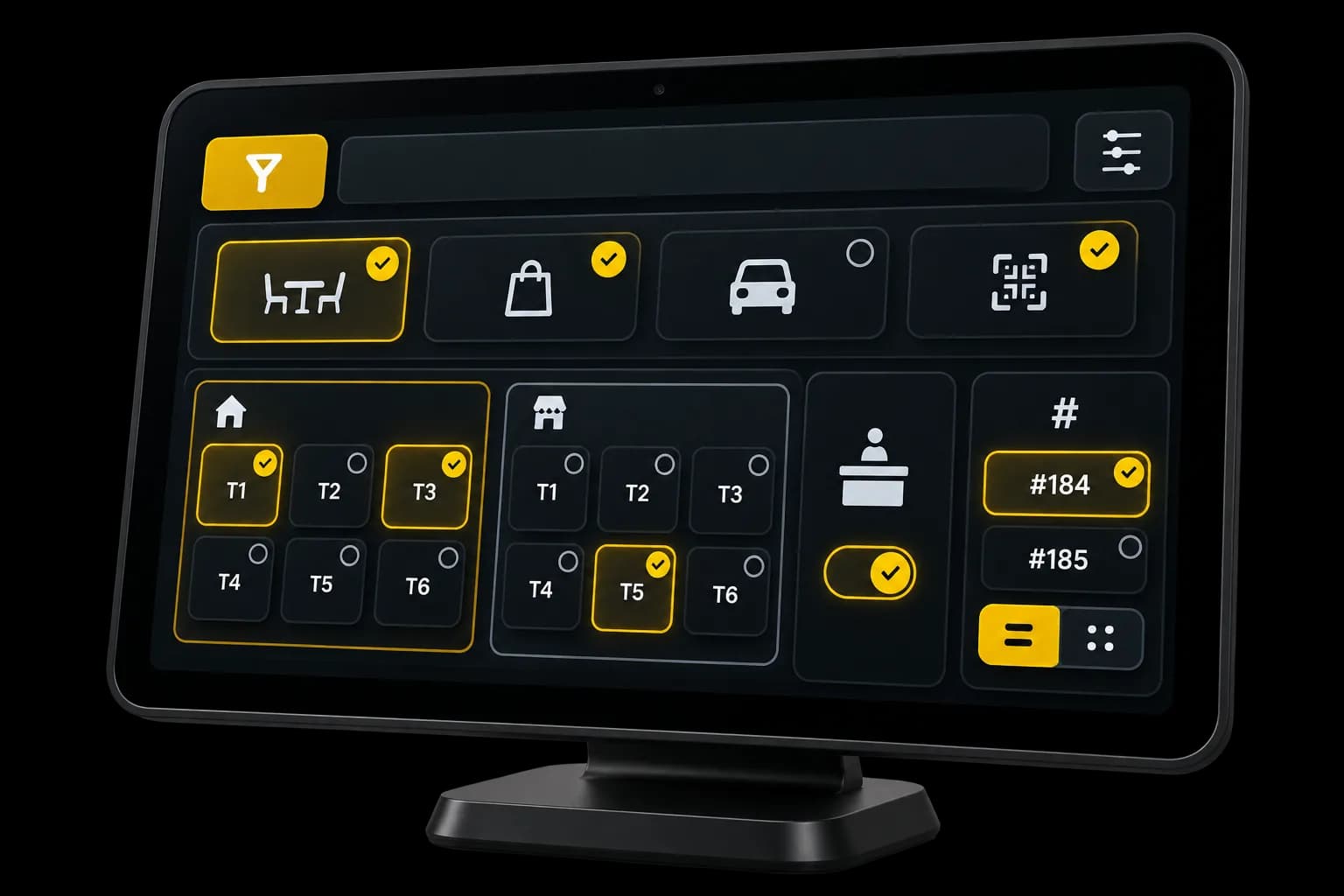
Filters
Each screen receives the orders that concern it.
A product arrives on the screen it is assigned to. Filters then limit what that station shows.
Order types
Dine-in, takeaway, delivery, or QR order.Tables and zones
All tables, a selection, or selected tables left out.Counter
Orders with no table can be shown on their own.Order numbers
Two screens can split even numbers and odd numbers.
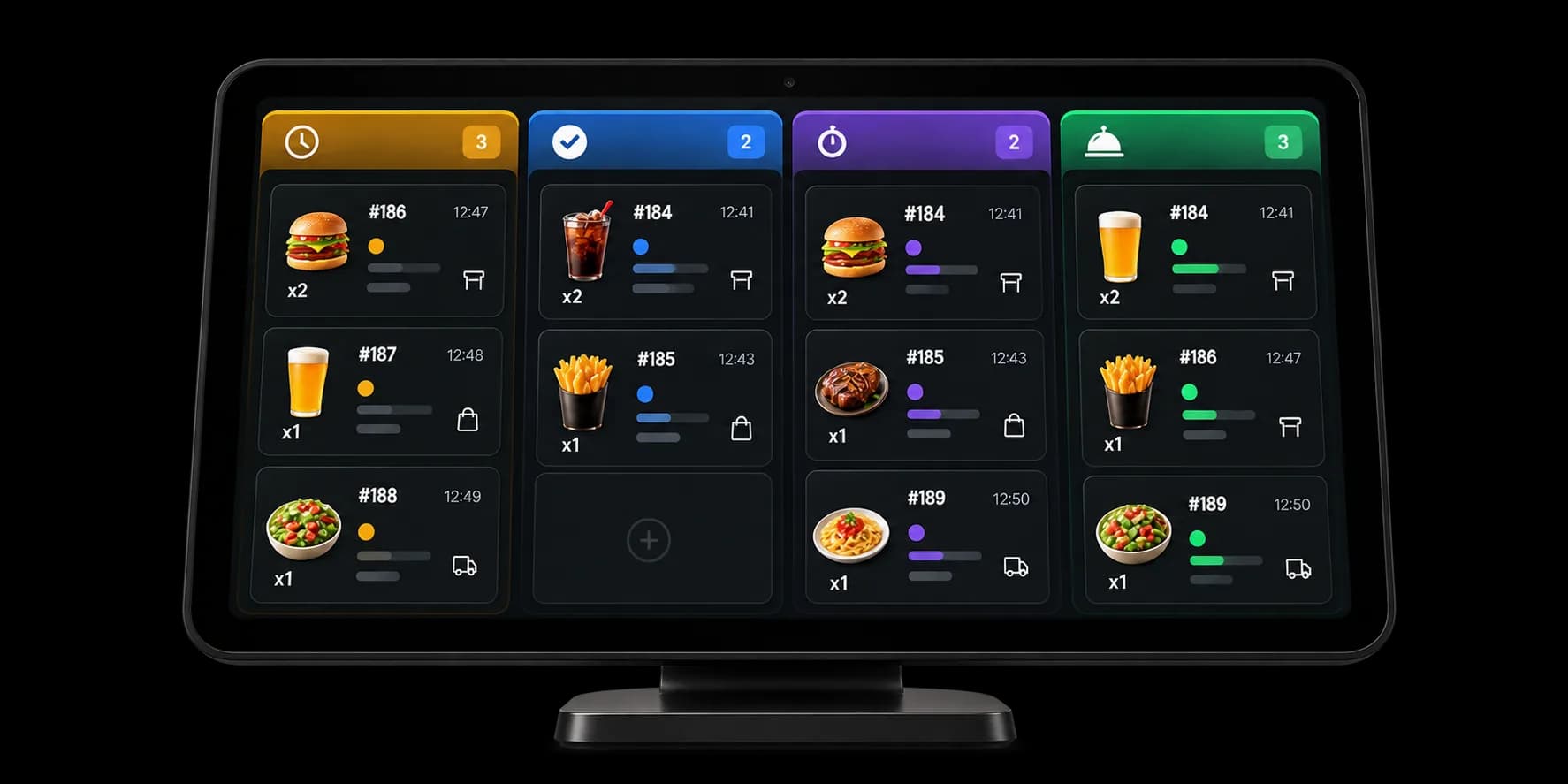
Preparation
Follow how each item moves forward.
The team moves each item by hand: waiting, accepted, in preparation, ready, then served. Items from the same order can move separately. A drink can already be ready while a dish is still in preparation.
Waiting
New items appear on the station.Accepted
The team marks that it has taken them.In preparation
Items being made stay easy to see.Ready
Service can see what is ready to leave.
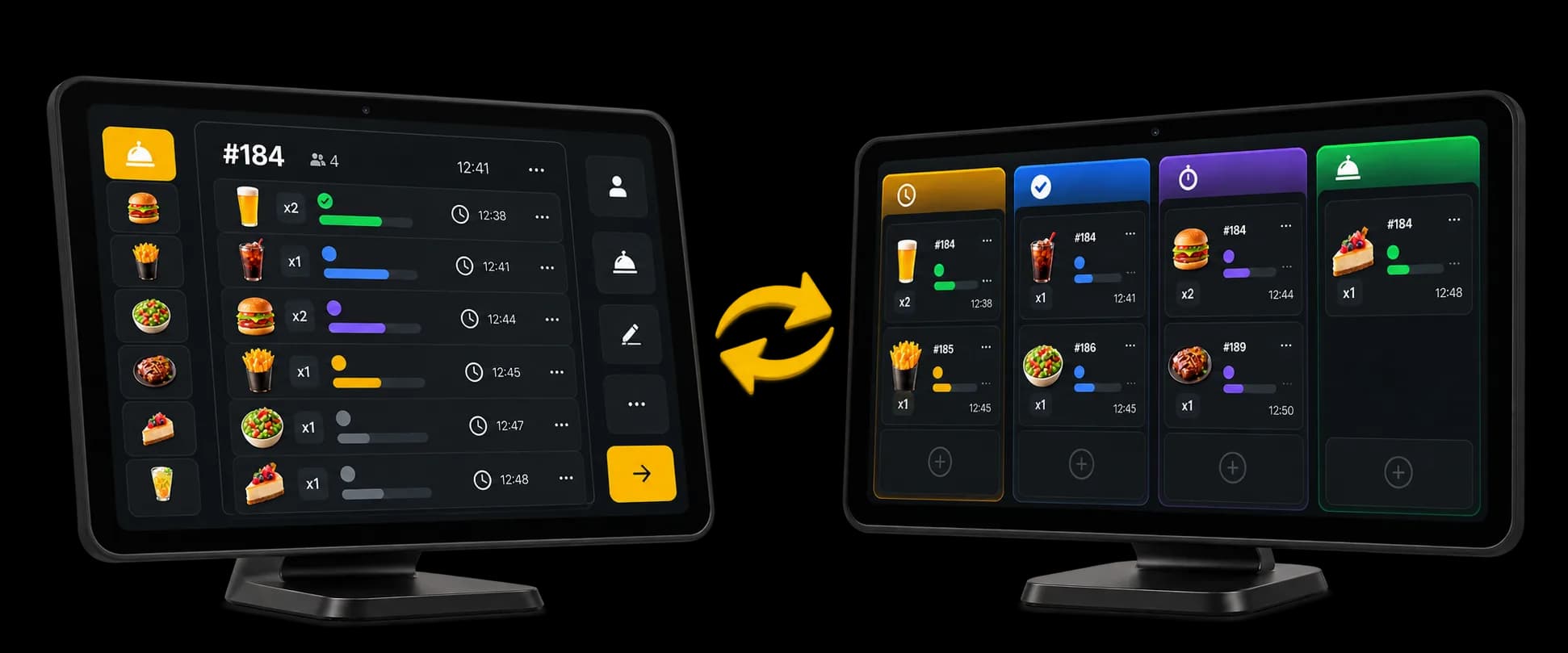
Till and preparation
Preparation stays on the order at the till.
When a station moves an item forward, that status is written back onto the order. Service can see what is still in progress and what is ready.
Same order
The order stays the same from the till to the preparation station.Status per product
Items on one order can move forward separately.No reload
While the screens are connected, new items and status changes appear without reloading the page.
Settings
Set each station up to match how you work.
Automatic acceptance is set per screen. The item becomes accepted. Preparation starts when the team starts it.
Automatic acceptance
An item can be accepted as soon as it reaches the station.Table service
Preparation waits until the course is sent from the till.Per station
Each screen has its own setting, and can be switched off.
Printing
Screens and printers can work together.
A printer can be linked to one screen, or to every screen. The station can also send a print by hand.
Linked to a station
The printer follows the screens you point it at.Print on demand
The team can start printing an order by hand from the screen.Both at once
The screen and the printer can be used together.
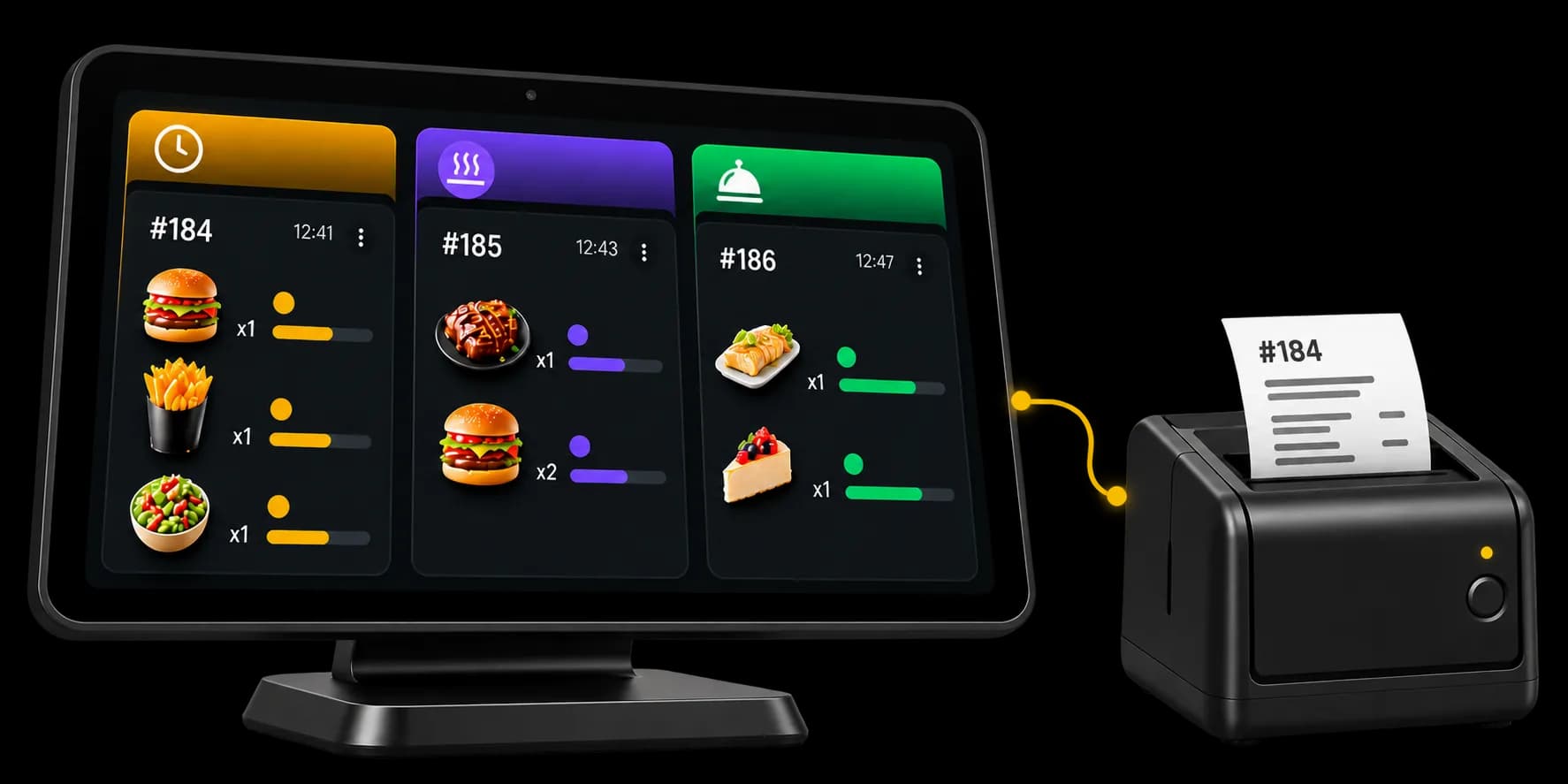
Connected flow
From the order to preparation, it stays one thread.
The till sends products to the stations that should prepare them. Each team moves its own work forward, and the status comes back onto the original order.
- OrderIt stays the order that is already open.
- StationEach product arrives on the screen it is assigned to.
- PreparationThe team moves forward what belongs to it.
- ReadyThe station shows what can leave.
- ServiceThe status is visible on the original order.
Venues
Set the stations up around your venue.
One screen, or several stations. The order stays one order either way.
Questions about production screens
What teams ask before they put preparation on a screen.
What do I need for a production screen?
A screen (television, monitor or tablet) and a connection. While the screen is open and connected, new items and status changes appear without reloading the page. Free includes 1 screen. Multiple on paid plans.
Can one order go to several screens?
Yes. The order stays one order. Each product goes to the screen it is assigned to: drinks to the bar, dishes to the kitchen, for example. Each screen only shows the products assigned to it.
How is a product assigned to a screen?
Directly, product by product. You can also link a screen to menus or categories: a product added afterwards to that menu or category can be assigned to the station. Saving a new rule does not reassign products already in place.
What happens when several screens match?
Priority decides. The product goes to the screen with the highest priority.
Who moves preparation forward?
The team, by hand: waiting, accepted, in preparation, ready, served. Items on the same order can be in different states. If you turn on automatic acceptance, the item is accepted as soon as it arrives. On a table ticket, it waits until you fire service from the till. Preparation starts when the team starts it.
Does the till see that progress?
Yes. The status is written onto the original order. Service can see what is still in progress and what is ready.
What can a screen filter?
On top of product assignment: order type (dine-in, takeaway, delivery, QR order), tables (all, a selection, or some left out, including by zone), orders with no table, and even or odd order numbers.
Does the screen replace the printer?
No. The two can work together. A printer can be linked to one screen, or to every screen. The team can also print an order from the station.
Ready to organise your preparation stations?
One order stays one order, even when several teams prepare it.
- Free plan available
- No commitment
- Ready in minutes