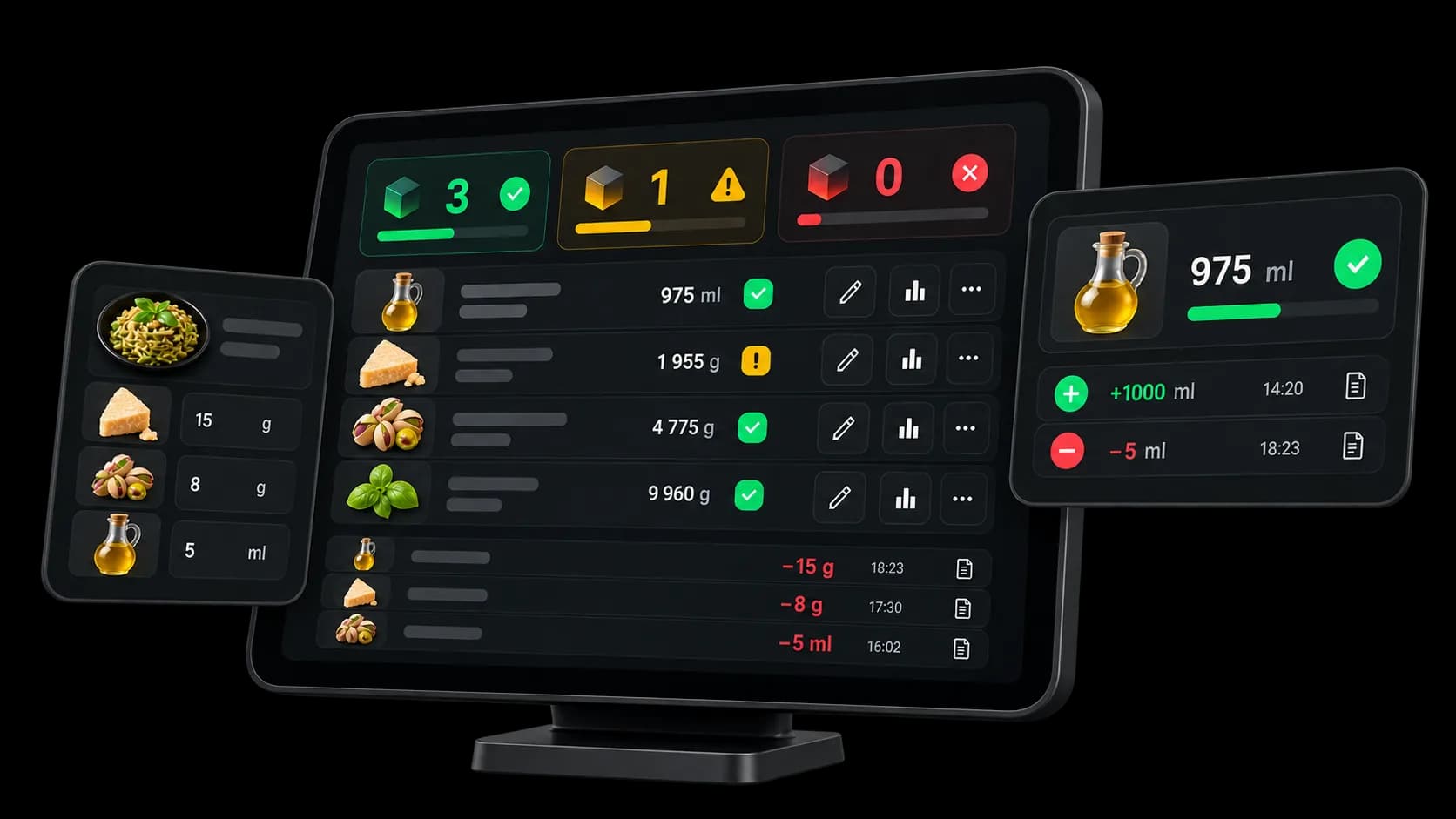
Stock & inventory
Follow your stock as you sell.
Choose which products to track.
Sales move their quantities. The overview shows what is running low or gone, and the history is how you understand each change.
- Included on every plan
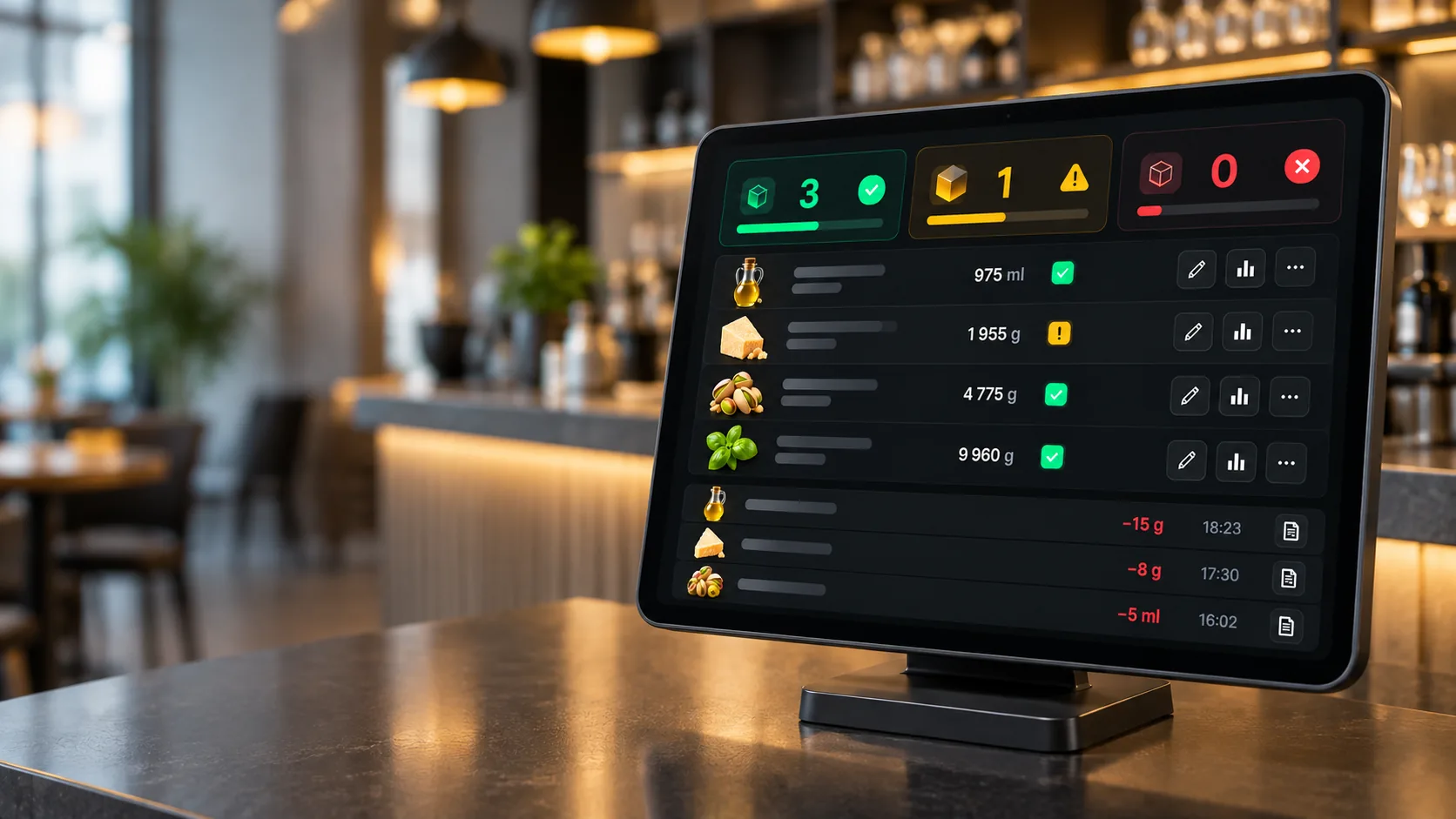
Track what you choose
Turn stock on only for the products that need it.
Tied to sales
Quantities move according to what is sold.
Levels to watch
See low stock and items that are out.
History
Find the recorded movements on each item.
Sales and consumption
Sales move the quantities.
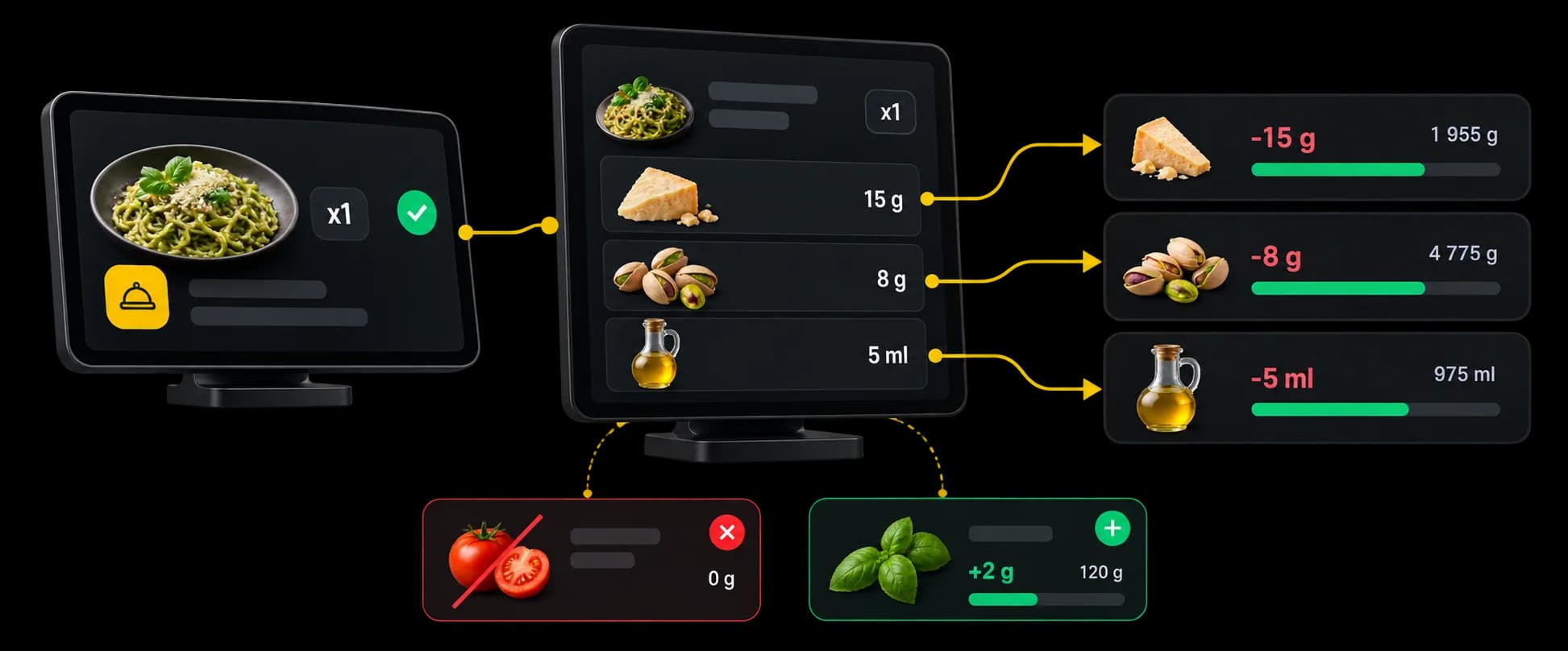
A technical sheet sets the ingredients and the quantities planned for a sale. Waiterr applies that consumption to the stock of the products concerned.
Technical sheet
Quantified ingredients are consumed according to the sheet of the product sold.Removed ingredient
If the guest removes an ingredient from the dish, that quantity is not deducted.Supplement
An added supplement consumes the matching quantity.
Overview
See quickly what needs your attention.
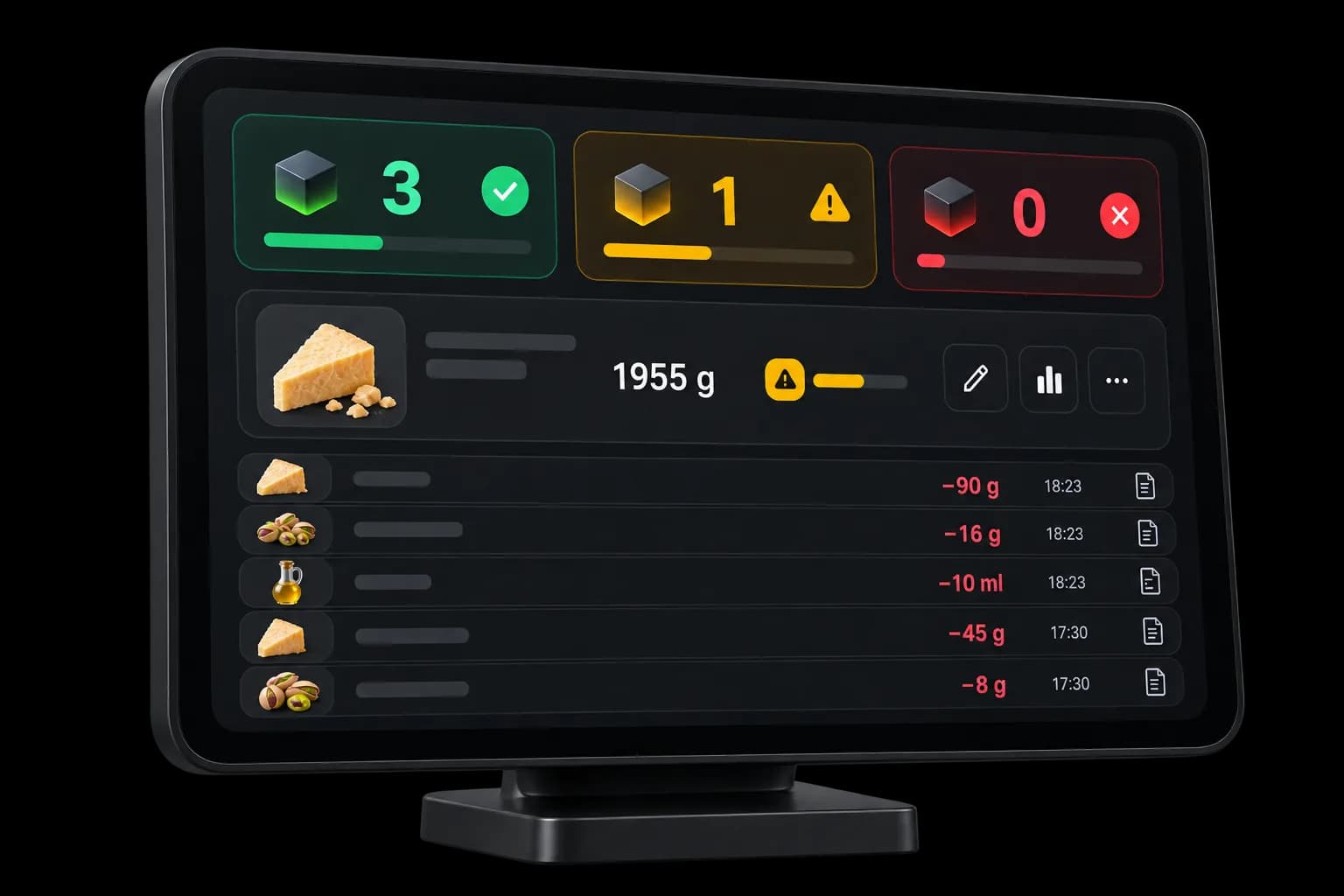
The overview groups tracked products and separates those in stock, low, or out.
In stock
The quantity is above zero, and above the threshold if you set one.Low stock
The quantity has reached the threshold you set, and it is not out of stock.Out of stock
The theoretical quantity is zero or below.To deal with
Out-of-stock and low-stock items are grouped so you can spot them quickly.
Setup
Track only the products that need it.
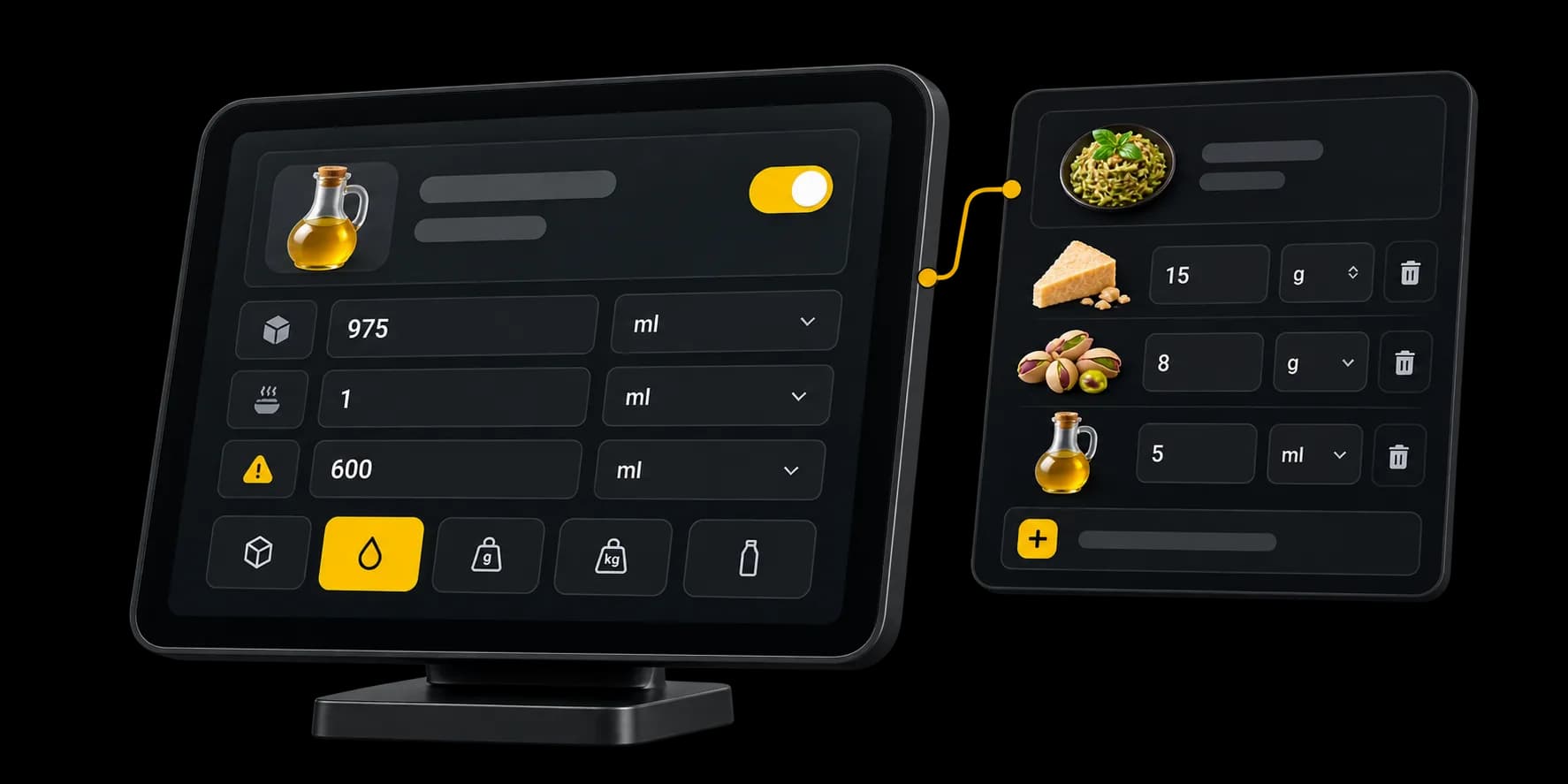
Tracking is turned on product by product. Set the quantity on hand, its unit, the consumption and, if you want, a low threshold.
Your choice
Turn stock on only for the items concerned.Quantity and unit
Piece, gram, kilogram, millilitre or litre.Consumption
Set the quantity consumed directly, or use a technical sheet.Low threshold
The level from which the item shows as low.
Movements
Adjust the stock when reality changes.
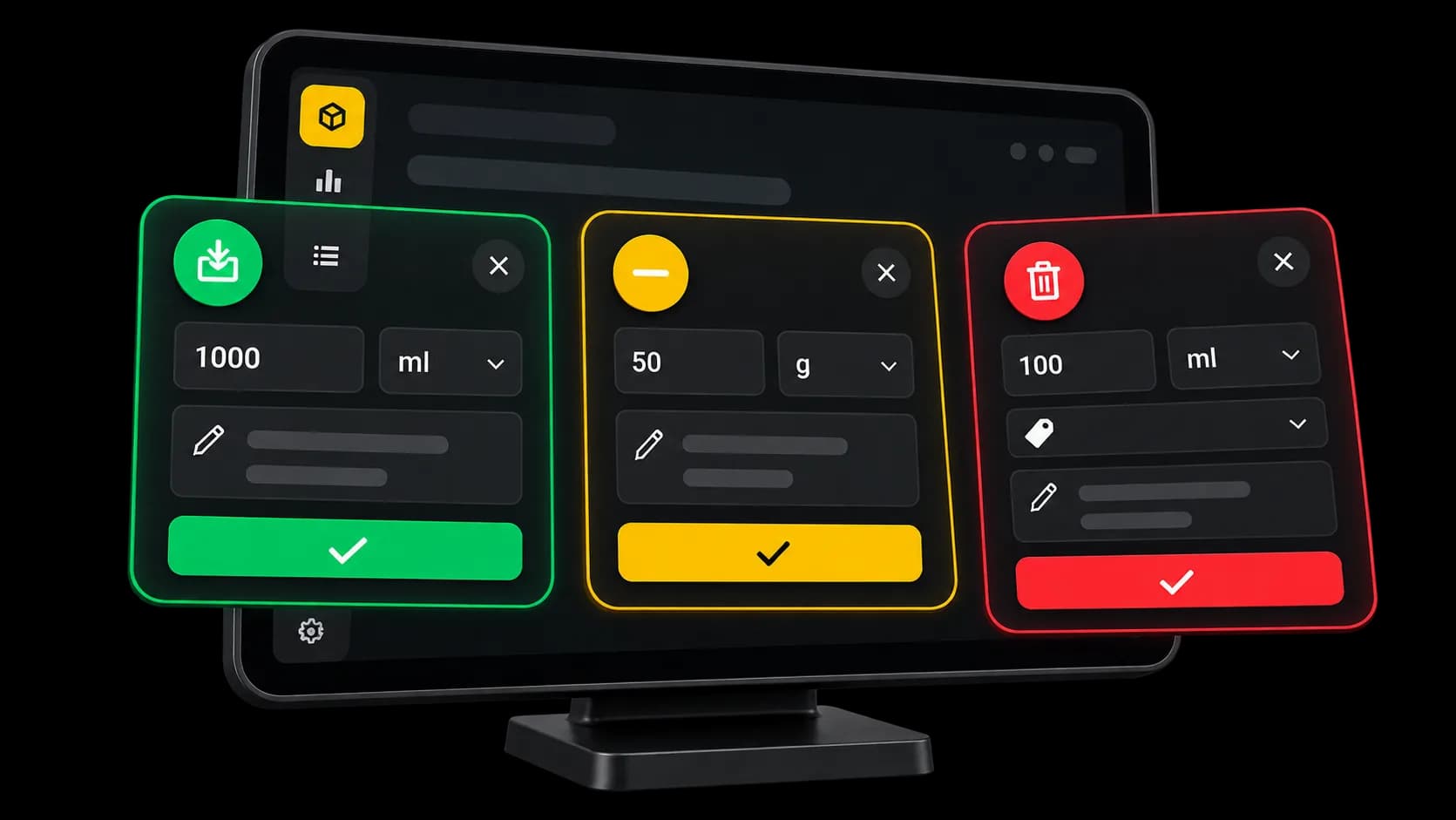
When a delivery arrives, after a loss, or when a quantity needs correcting, just record the matching movement.
Receipt
Add the quantity received to the stock.Correction
Remove a quantity to correct the figure on screen.Loss
Record a lost quantity, with a reason and a note if you want.
History
See why a quantity changed.
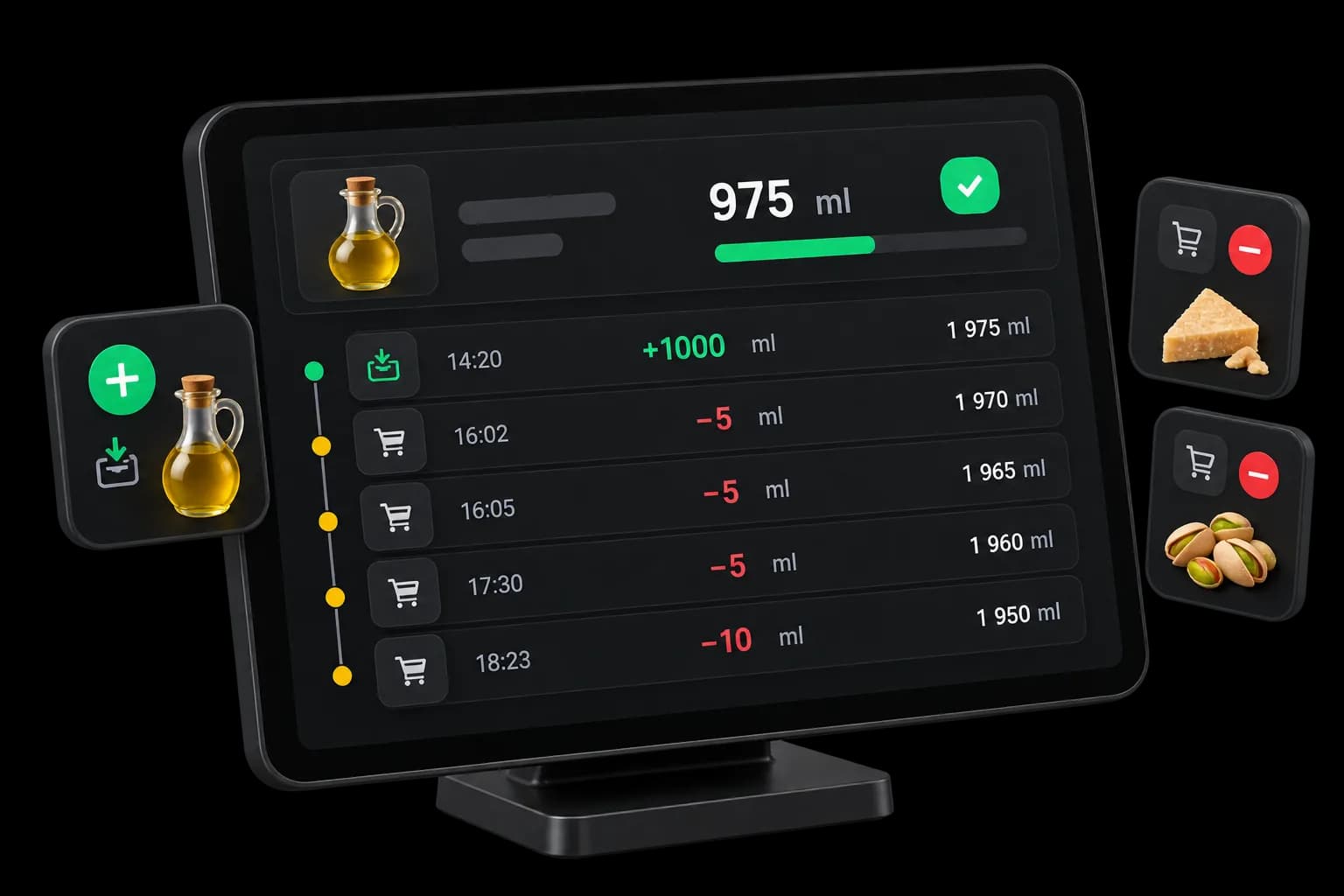
Each recorded receipt, sale, correction or loss adds a movement to the item’s history.
Sales
Consumed quantities appear in the history.Receipts and adjustments
Quantities added or removed stay visible.Cancellations
Removing a line that was already consumed, or cancelling the sale, puts the matching quantity back.
List
Find and export the quantities you track.
Search for an item, show low stock or items that are out, and export the filtered list to Excel.
Search
Find a tracked item by its name.
Filters
All items, low stock, or items that are out.
Excel
The list matching the search and the filter can be exported.
From product to stock
From the sale to the stock left, each movement has a reason.
The product’s sheet says what a sale consumes. The theoretical quantity moves, and the movement stays on the item.
- OrderWhat is sold determines the consumption.
- Technical sheetThe ingredients and quantities you configured are used.
- StockThe theoretical quantity moves.
- HistoryThe movement stays visible on the item.
Venues
Tracking that fits your venue.
Not every product needs to be tracked. You choose which ones.




Questions about stock
What teams ask before they track quantities in Waiterr.
When is stock deducted?
It depends on the kind of order. For a table order, stock is deducted when the product is added. For a counter sale, it moves when the order is recorded. A basket that is still a draft waits for payment.
How does a technical sheet work?
It sets the ingredients and the quantities planned for a sale. Those quantities are deducted from stock. The dish itself is not deducted when it has a quantified sheet. A line with no quantity consumes nothing.
What happens if an ingredient is removed?
If it is removed from the order, its quantity is not deducted. While it stays in the dish, it is. An added supplement consumes the matching quantity.
What happens when stock reaches zero?
The item shows as out of stock on the overview and in the list to deal with. Waiterr does not block the sale: the theoretical quantity can go below zero.
Can I record a receipt, a correction or a loss?
Yes. A receipt adds a quantity. A correction on the list removes one: you do not type a new total in its place. A loss removes a quantity, with a reason and a note if you want.
Can I see why a quantity changed?
Yes. A receipt, a sale, a correction, a loss and the cancellation of a line that was already consumed each leave a movement, with the date. A refund that leaves the order in place does not put the stock back by itself.
Can I export my stock?
Yes. The list on screen, with the current search and filter, exports to Excel. That file is the quantities, not the movement history.
Ready to keep a closer eye on what you have left?
Turn tracking on for the products that need it. Sales and adjustments then move their quantities.
- Free plan available
- No commitment
- Ready in minutes