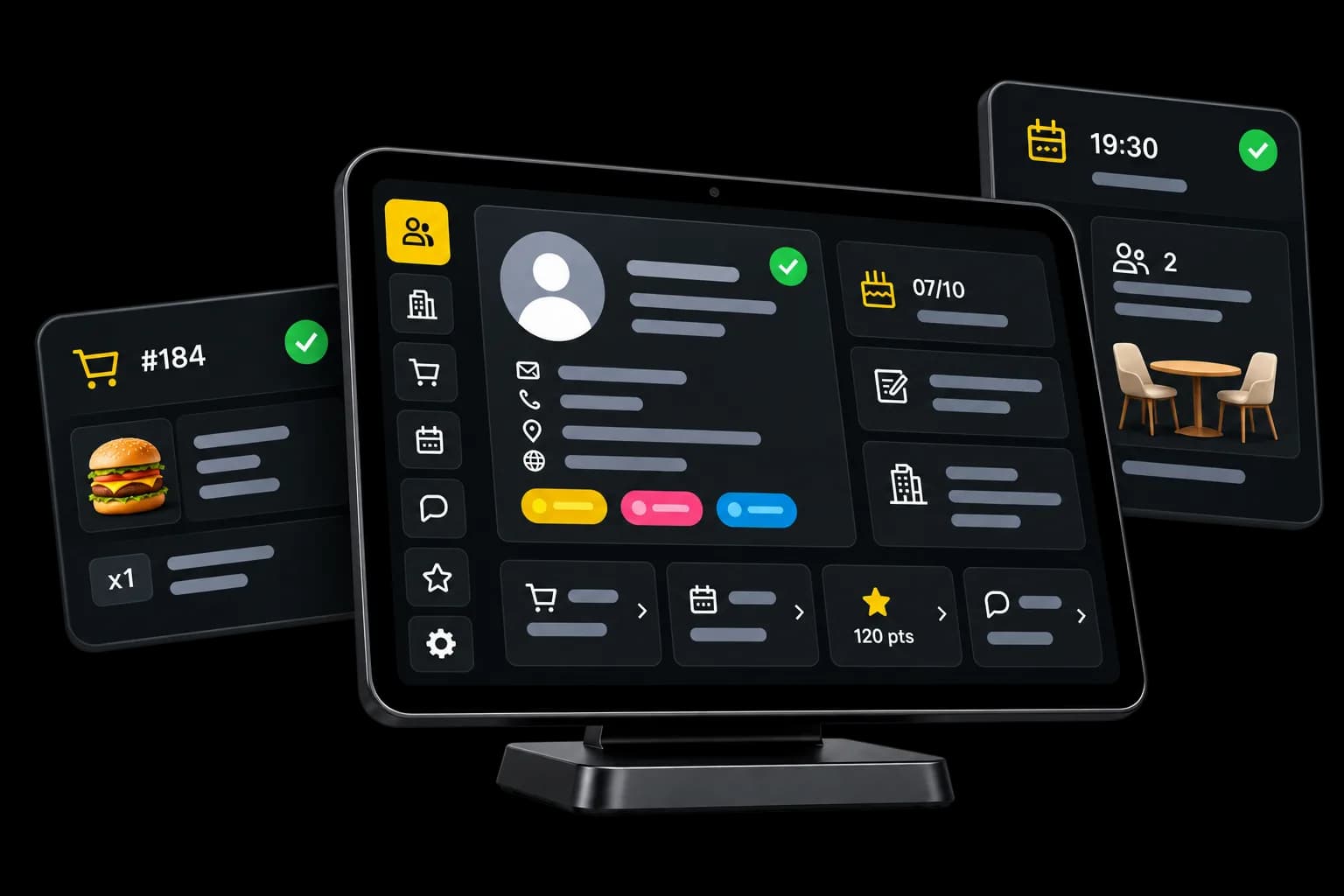
Customers & CRM
Keep the details that matter about your customers.
Their contact details, notes and tags.
Attach their record to an order or a reservation when you need it.
- Included in every plan
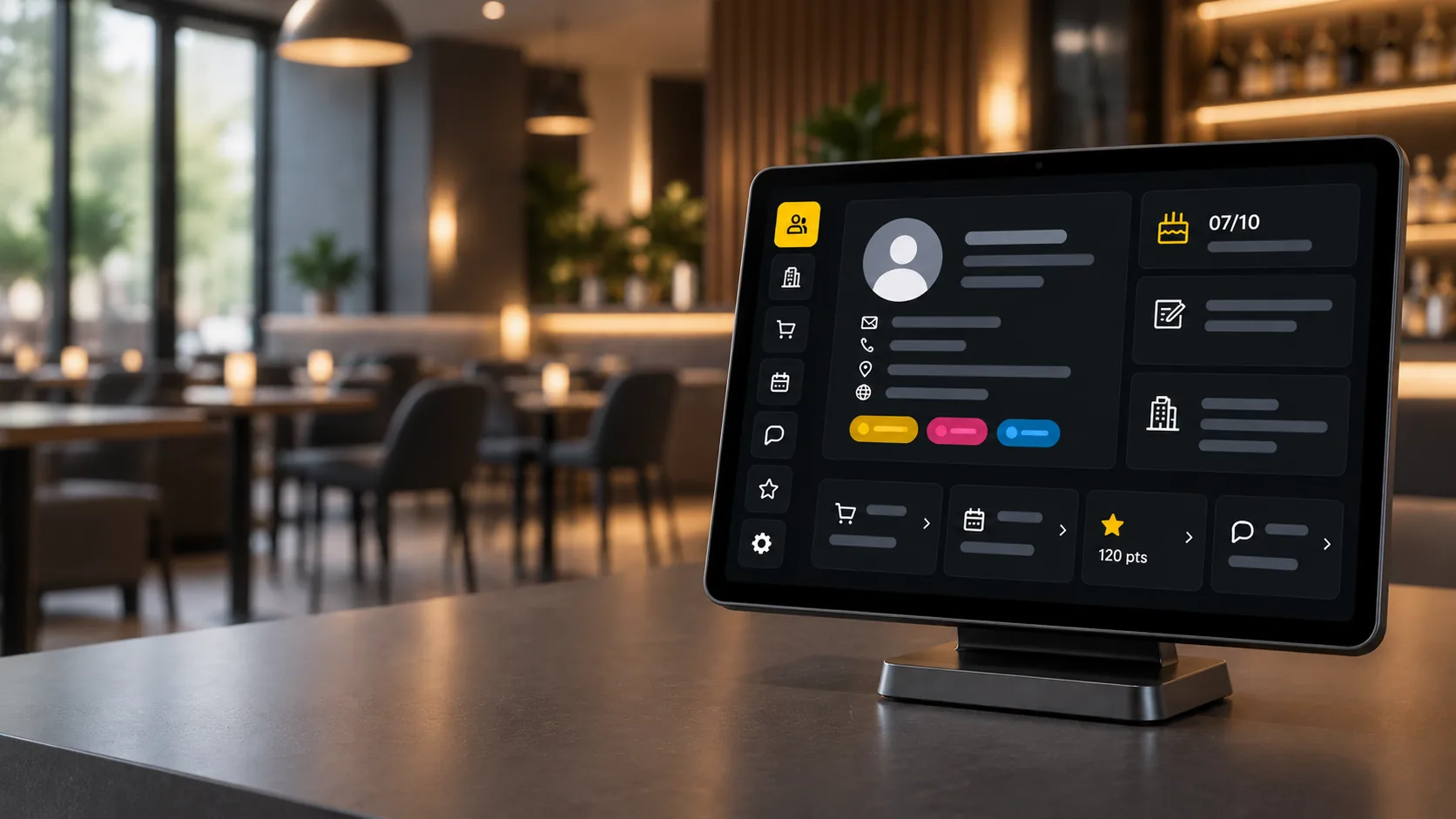
Customer records
Keep the details your team actually uses.
Till
Attach a customer to an order when you want to.
Reservations
Find an existing record when you create a reservation.
Search and filters
Find customers from the details you stored.
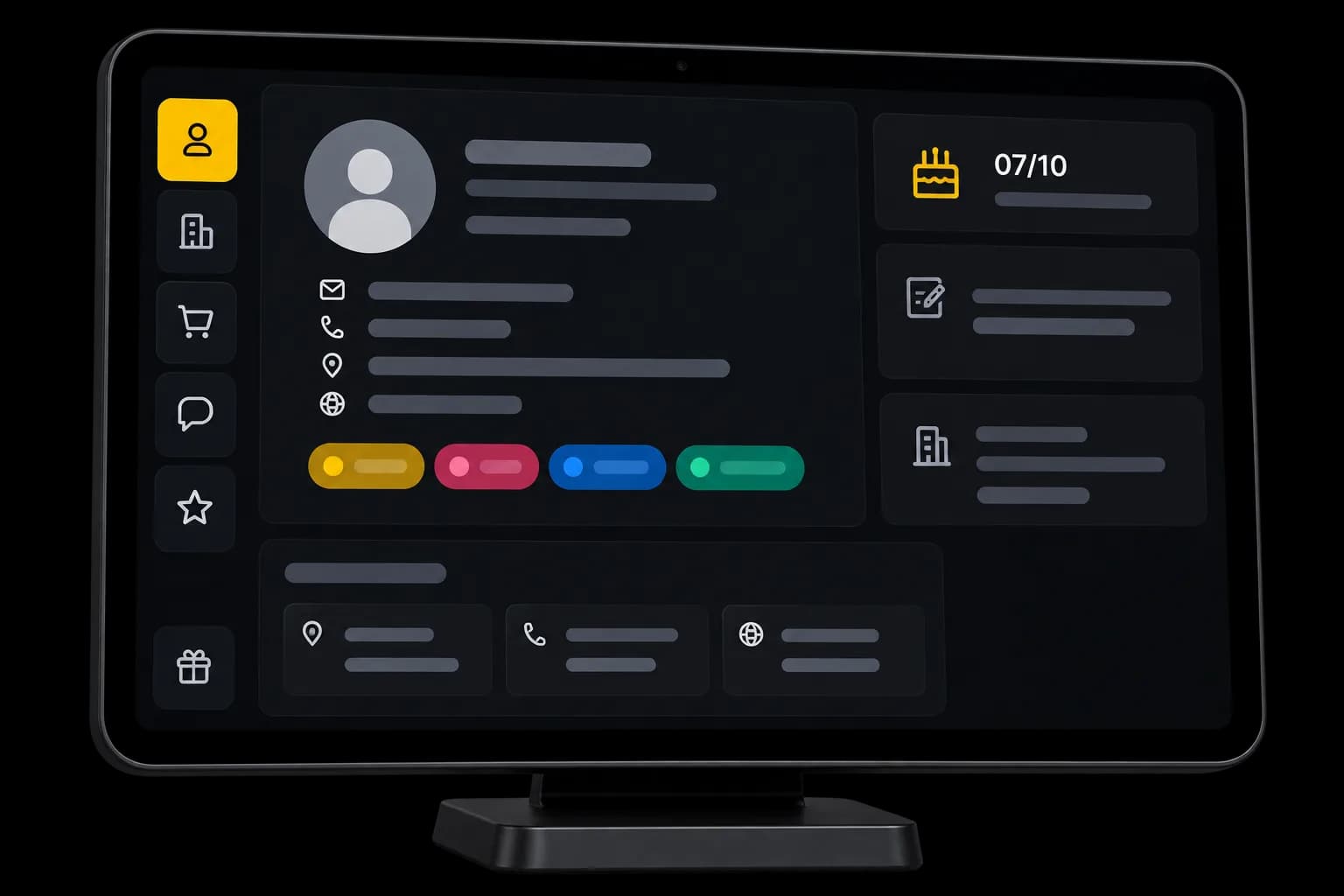
Customer records
One record for what matters about each customer.
Contact details, a note, tags, a birthday or company information: fill in what is useful for your venue.
Contact details
Keep the name, address, contact details and preferred language.Tags
Add several tags to organise your records.Note
Keep one detail your team needs.Company details
Add business contact details when you need them.
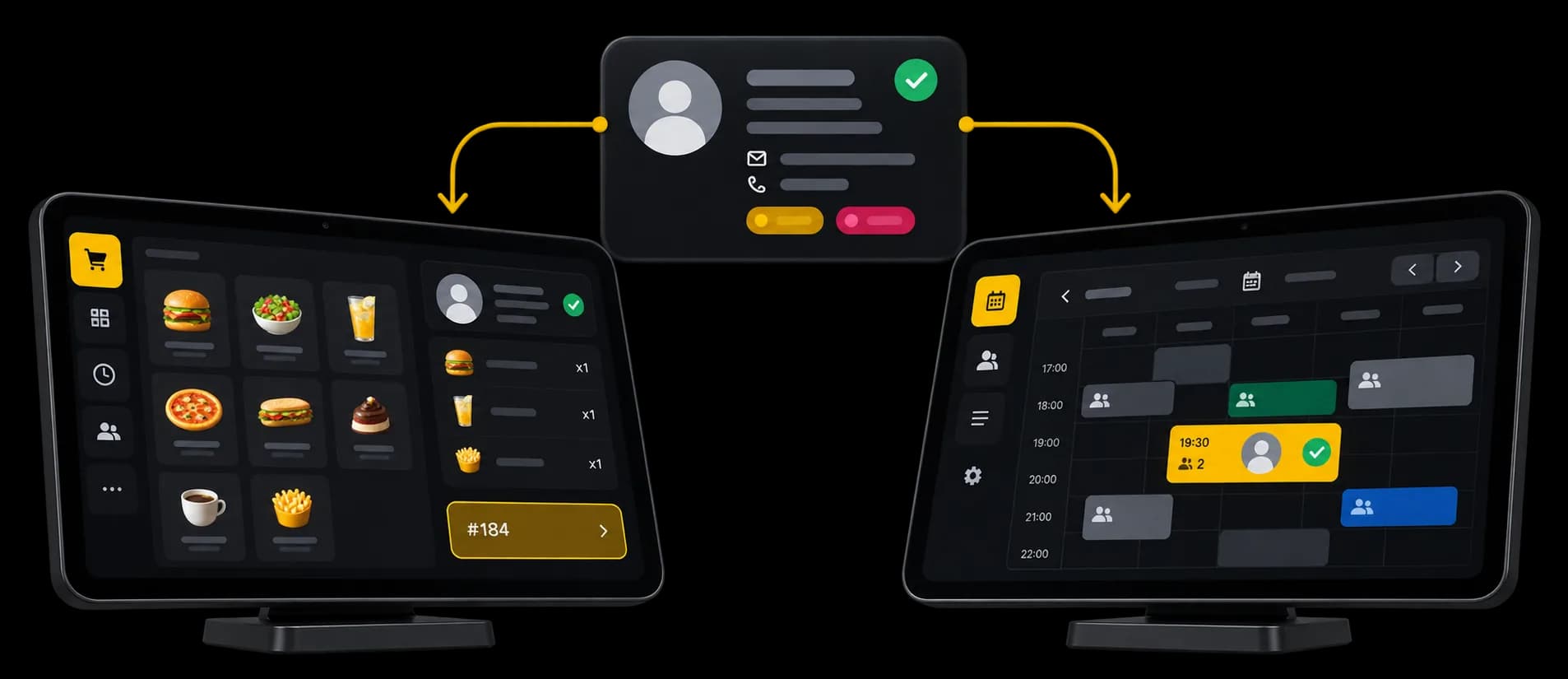
During service
Attach your customers to orders and reservations.
Look up an existing record when you take an order or create a reservation. The details already stored stay available to your team.
At the till
Search for a customer and attach their record to the order.On a reservation
Find an existing customer when your team creates a reservation.Add a customer
Create a record directly from the till or while making a reservation.
Orders
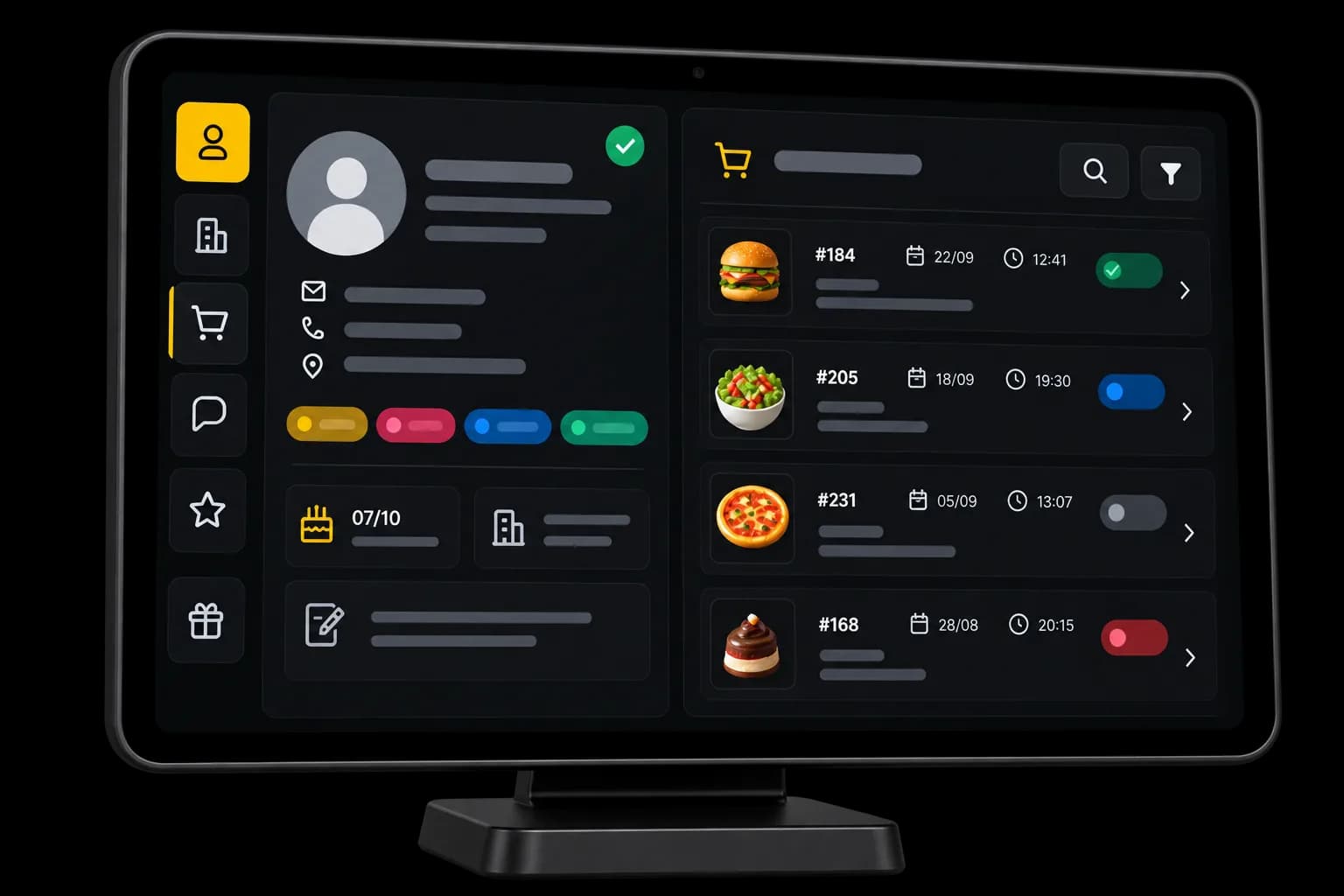
Find the orders linked to the record.
When an order is attached to a customer, it stays available from their record.
Attached orders
See the orders stored with this customer record.Order detail
See what each order shows, and open it for the full detail.
Search & filters
Easily find a customer in your list.
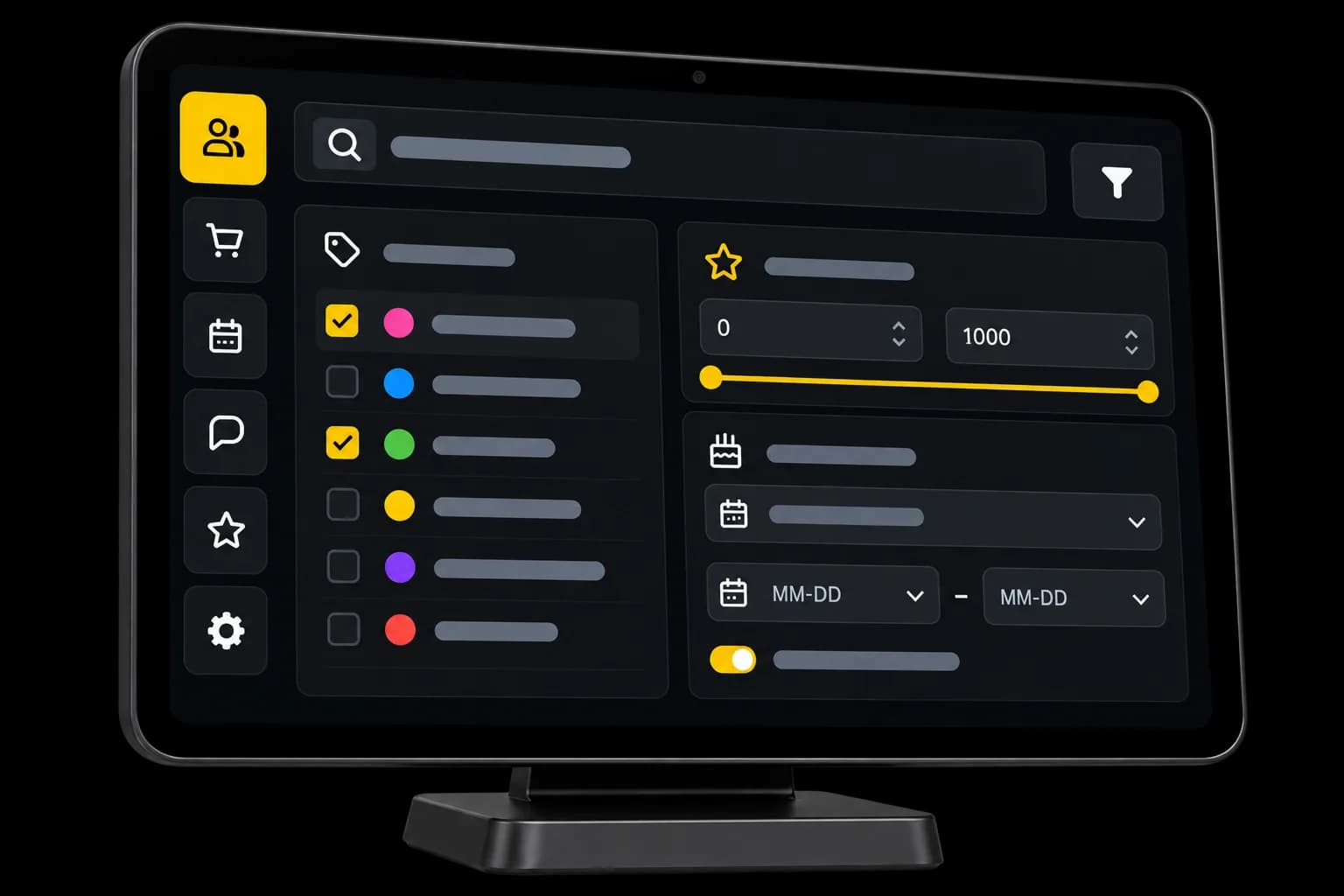
Search for a customer, or use tags, loyalty points and birthday details to narrow the list.
Tags
Filter records by the tags your team assigned.Birthdays
Find customers by month, by a date range, or by an upcoming birthday.Loyalty
Narrow the list by the points balance stored on the record.
Import & export
Import or export your customer list.
Import records from Excel, or export the customer list of your venue.
Excel import
Create or update records from an Excel file.Excel export
Export the customer records of your point of sale.
Around the customer record
Loyalty and reviews, available from the customer record.
See the loyalty points and the reviews stored with the record, when they exist.
Questions about customer records
What teams ask before they keep customer details in Waiterr.
How do I create a customer record?
From the customer list. At the till, and when your team creates a reservation, you can also add a record if the customer is not there yet. An online reservation or an online payment can create or find a record when a name and an email or a phone number are provided.
Does a sale automatically create a customer?
No. At the till, you search for a customer and attach their record to the order. Without that, the sale keeps the name that was typed and no record. An online reservation or an online payment can create or reuse a record when a name and an email or a phone number are present.
Can I find a customer’s orders?
Yes, the ones that were attached to their record. They appear on the record, and you can open an order to see its detail. Orders that were not attached do not show up on the record afterwards.
Can I organise customers with tags?
Yes. You create your tags and assign them to customers yourself. A record can carry several. The list keeps customers who have at least one of the tags you chose. Tags are not assigned automatically.
Can I find birthdays?
Yes, when a birth date is stored. You can filter by month, by a date range, or by birthdays in the coming days. Waiterr does not send a birthday message.
Can I import or export my customers?
Yes. An Excel file can create records or update the ones that match an email or a phone number. The Excel export is the records of the point of sale. It is not limited to the search or the filter on screen.
Find your customers more easily.
Open your customers’ records from the till, or when you create a reservation.
- Free plan available
- No commitment
- Ready in minutes